On this page
Open Point of Sale from the side menu (or press + New, then New sale).
1. Pick a table or a counter sale
Tables are grouped by floor. Free tables are white; occupied ones show what they have ordered so far. Tap the table. For a customer at the counter, press Counter sale (no table).

2. Add what they order
Tap a product to add it. Tap again to add one more. To find things fast:
- tap a category pill (Beers, Grills, Cocktails…),
- type in Search what you sell,
- or scan a barcode: with a USB scanner just scan; typing a barcode in the search box and pressing Enter works too.
The order builds on the right. Use + and − to change quantities, or tap a line to change it.

3. Send the order
Press Place Order. Food goes to the kitchen screen and drinks to the bar screen (and to their ticket printers if you have them). Sent items are marked sent.
Later, when the table orders more, add the items and press Send changes: only the new items go to the kitchen and bar.
Removing an item already sent, or changing a price, needs a manager. See Cancellations, refunds and manager approval.
4. Take the payment
When the table asks for the bill, press Bill to print it, then Charge Order when they pay.
- Choose the payment method: Cash, MTN Mobile Money, Orange Money, Card or your own.
- For cash, tap the amount handed over (the till suggests round amounts) and it shows the change to give back.
- For mobile money, type the transaction Reference from the customer’s message.
- Press Confirm Payment.

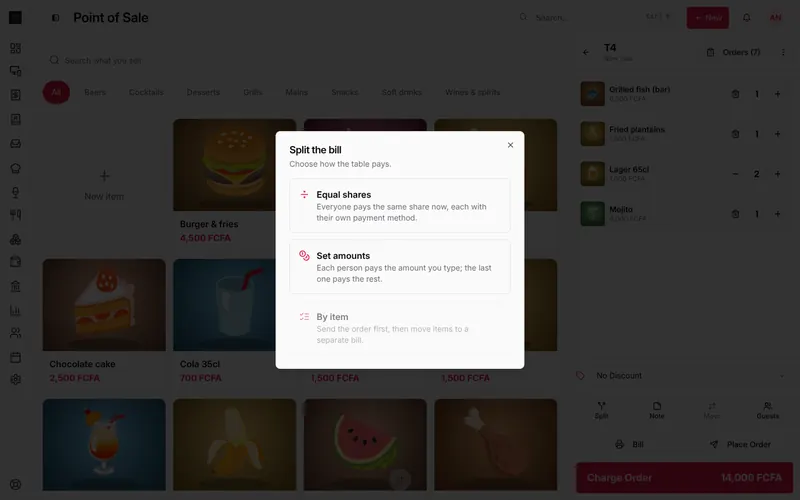
Paying with two methods (part cash, part MoMo)? Press Two methods. Several people paying the same share? Press Equal shares. Putting it on a customer’s account? Press Pay later (see Customer tabs).
5. Print the receipt
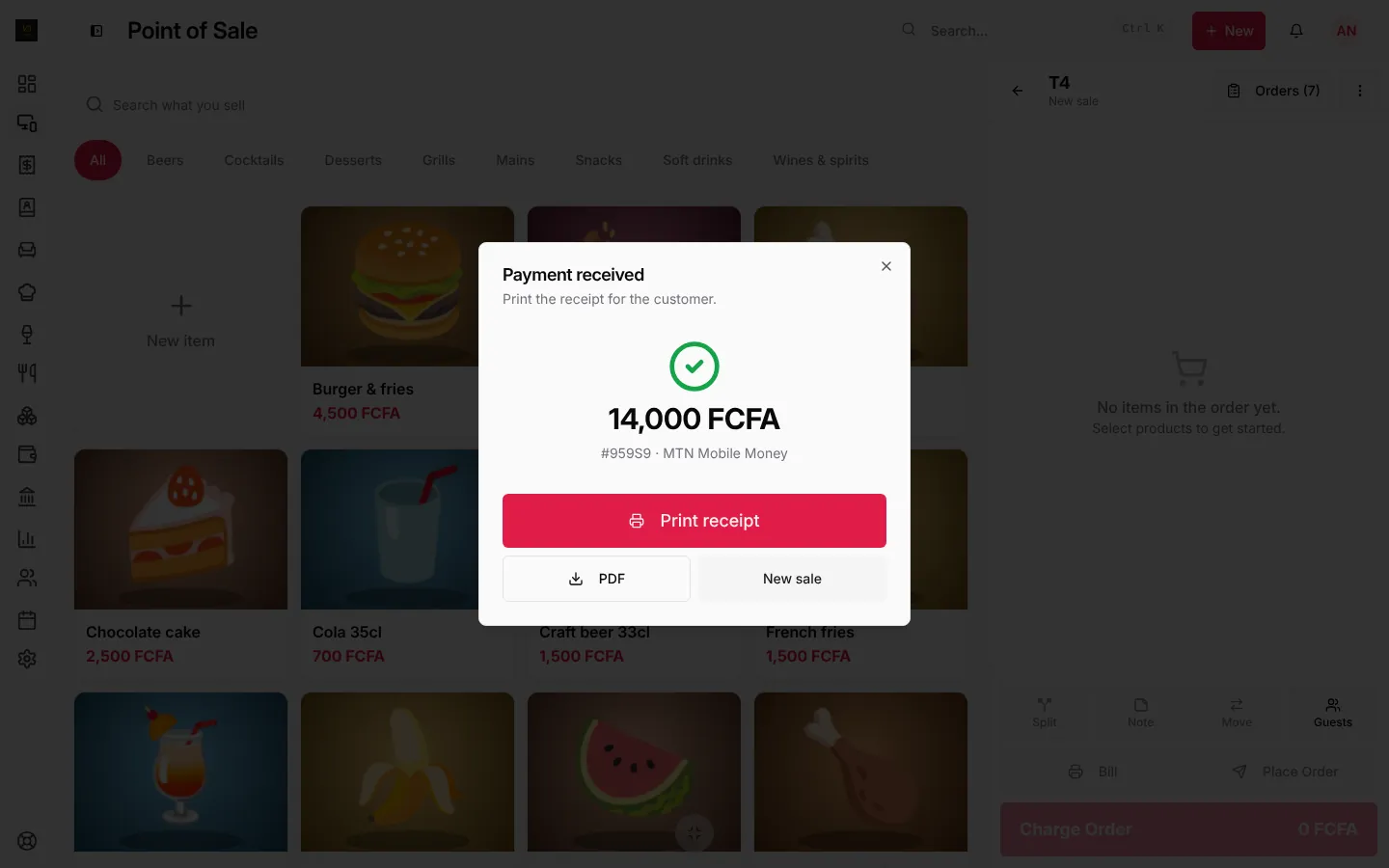
Payment received shows the amount and the method. Press Print receipt for the thermal printer, PDF to save or share it, or New sale to go on.
Counter sale in four taps
Counter sale → the item → Charge Order → Confirm Payment (cash, exact amount) → Print receipt.
Find an order again
Press Orders at the top of the till. Open lists every unpaid order; Paid and cancelled lists the last 24 hours, with Reprint and Refund. The full history is on the Orders page.
Frequently asked questions
The internet went down in the middle of service. What happens?
On the Windows or Mac app, nothing changes: keep selling. Orders, payments and receipts are saved on the till and sync when the connection is back. See Offline and sync.
Can I hold a sale and come back to it?
Yes. On a counter sale the Place Order button reads Hold: it keeps the sale, and you find it under Orders to finish it. A table’s order simply stays open on its table until it is paid.
Stuck on a step? Write to support@loungeos.app or WhatsApp +237 679 690 703 and say which page you are on.