Table Management
Table and floor management: see every table, every section, at a glance
Green, red or orange: the whole room in one view. Organise floors and VIP areas, assign waiters to sections, then split or merge bills when guests change their plans.
30-day free trial · No credit card · Works without internet
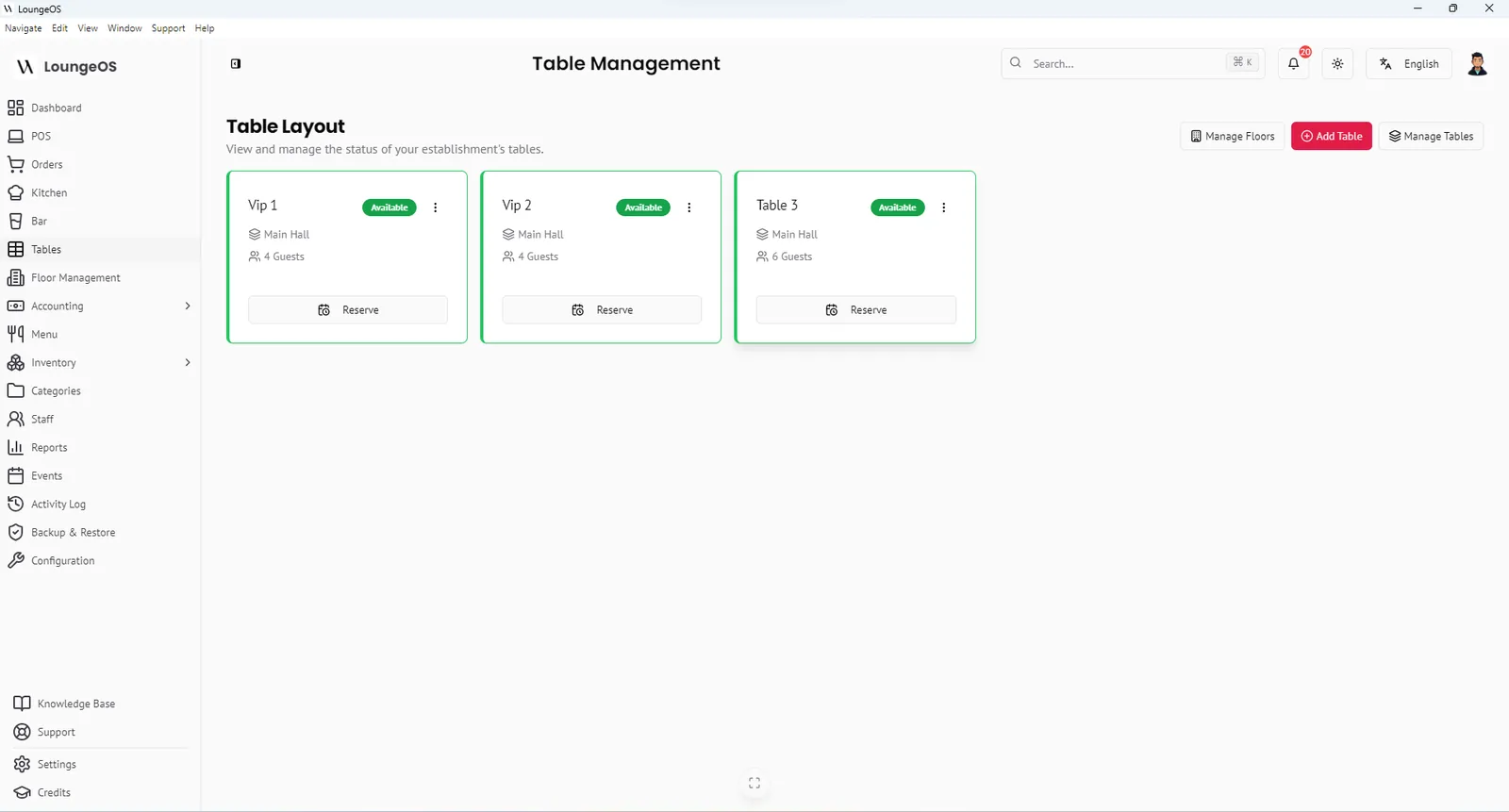
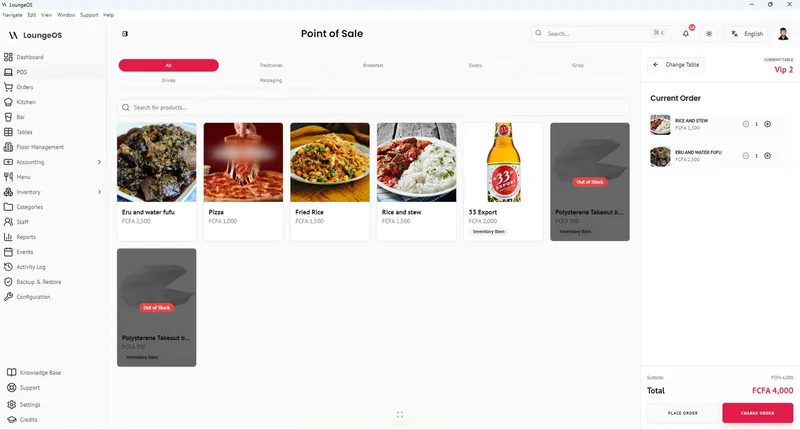
Table management is how a POS represents your dining room: which tables exist, which are free, who is serving them and what each has ordered. In LoungeOS, tables are the starting point of every dine-in order. A waiter taps a table, takes the order, and the table changes colour for everyone.
Colour-coded table status
| Colour | Meaning |
|---|---|
| 🟢 Green | Available, ready for guests |
| 🔴 Red | Occupied, with an active order |
| 🟠 Orange | Reserved, or needs cleaning |
When the bill is paid, the table returns to green automatically. Managers and cashiers see the whole room. A waiter sees the tables in their own section.
Floors, zones and VIP areas
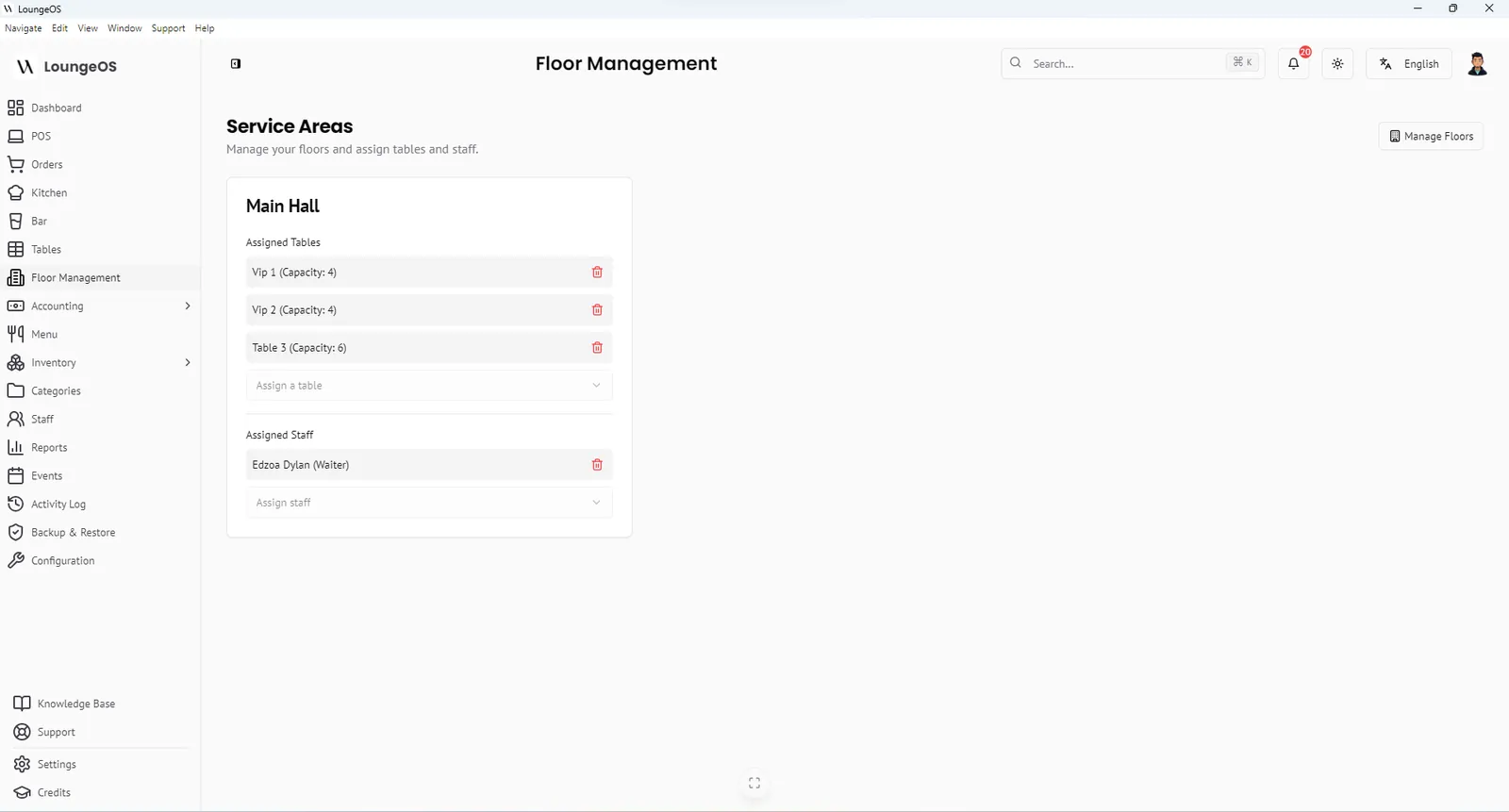
Lounges, hotels and large restaurants rarely have one room. In Floor management you create service areas such as Main hall, Terrace, VIP mezzanine or Poolside bar. You then:
- Add tables with a name or number and a seat capacity.
- Link each table to a floor.
- Drag and drop to arrange the layout.
- Assign waiters to floors. A waiter assigned to the terrace only sees terrace tables on their phone.
Floor assignment keeps the screen simple during a rush. It also makes responsibility clear: every table’s orders belong to a known person.
Split and merge bills
Groups change their minds. A table of eight wants four separate bills. Two couples who arrived separately decide to sit together. LoungeOS handles both, under manager control:
- Split an order. Select the items to move and choose a destination table. They move to a new order on that table.
- Merge orders. Choose a source table and a destination. The orders combine and the source table becomes available.
- Split payments. One bill can be paid partly in cash, partly by card and partly by mobile money.
Splitting and merging are manager-only actions. A waiter cannot quietly move items off a bill.
Manage many tables at once
Before an event, use Manage tables to select several tables and apply one action: move them to another floor, change their status, or delete them.
Frequently asked questions
Can each waiter see only their own tables?
Yes. Assign the waiter to a floor when you create their staff account, and their terminal shows only that floor’s tables.
Can I reserve a table?
Tables can be marked as reserved (orange) so staff know not to seat walk-in guests there.
Can guests split the bill by item?
Yes. A manager splits the order by moving selected items to a new order, and each order is then paid separately, with any mix of payment methods.
Does table management work on phones?
Yes. Waiters use the table view on any smartphone browser connected to your Wi-Fi.
Run your next service on LoungeOS
Install LoungeOS on a Windows computer, connect your tablets and phones over Wi-Fi, and run real service for 30 days. Free, no credit card.
Explore more
Restaurant table management guide
Floor plans, waiter sections, table status, turn times and bill splitting.
Read guide →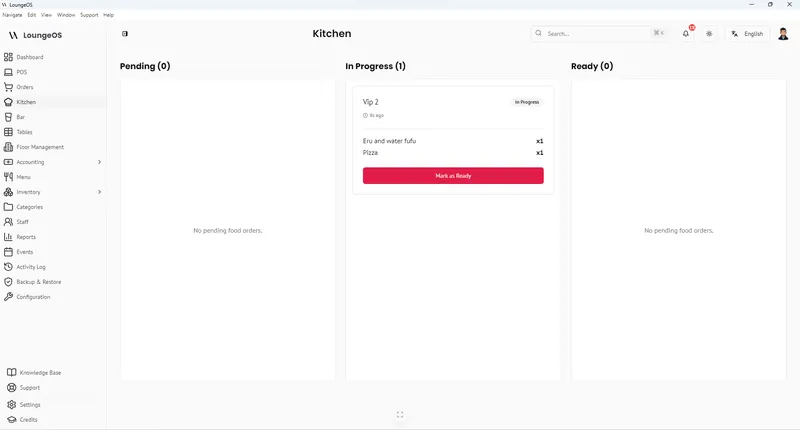
Kitchen & Bar Display System
Food goes to the kitchen screen, drinks to the bar screen, with audio alerts and Pending → Ready columns.
Learn more →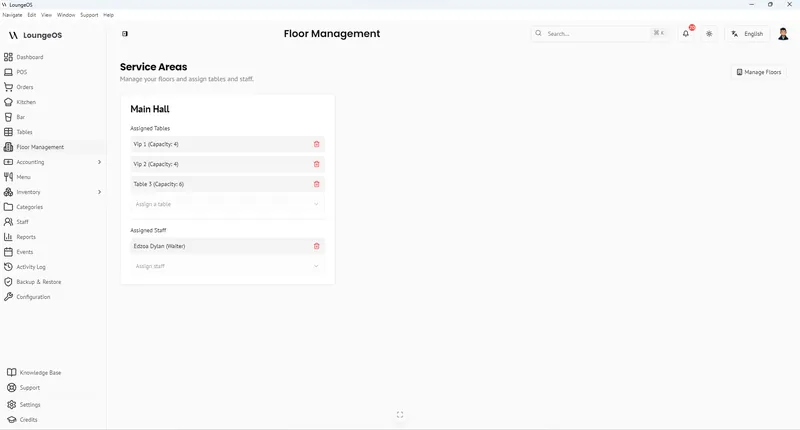
Lounge POS
VIP areas, bottle sales, events and late-night cash control for lounges.
Learn more →