QR Code Ordering
QR code table ordering: guests order, your staff stay in control
One QR code on every table. Guests open your menu on their own phone, choose their table and send the order. A waiter accepts it on the till and it goes to the kitchen and bar like any other order.
14-day free trial · No payment up front · Sells offline on Windows and Mac
Need help installing or setting up LoungeOS for your business? Message or call us on WhatsApp +237 679 690 703 (call)
QR code table ordering lets guests order from their table with their own phone, without waiting to catch a waiter’s eye. In LoungeOS it is part of the Business and Pro plans, and it works with the tables, kitchen and bar screens you already use.
It is built for busy terraces, lounges on a Friday night and restaurants where the second round of drinks is lost because nobody came to the table.
How it works for the guest
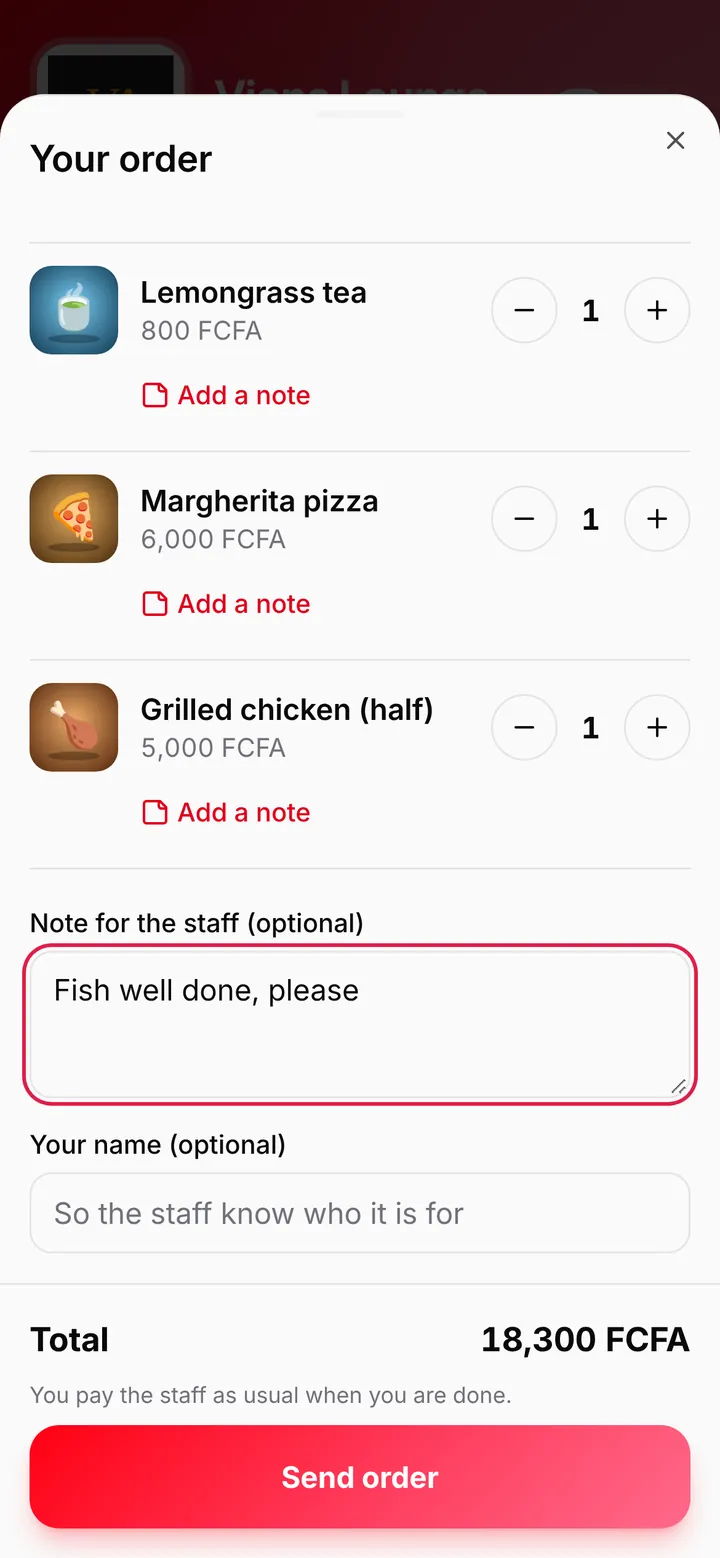
- The guest scans the menu QR code with the phone camera. Nothing to install, no account to create.
- Your menu opens with photos, prices in your currency and your categories, in English or French.
- They add what they want, choose their table, add a note (“no pepper, please”) and send.
- Their phone shows Sent to the staff, then whether the order was taken or declined.


How it works for your staff
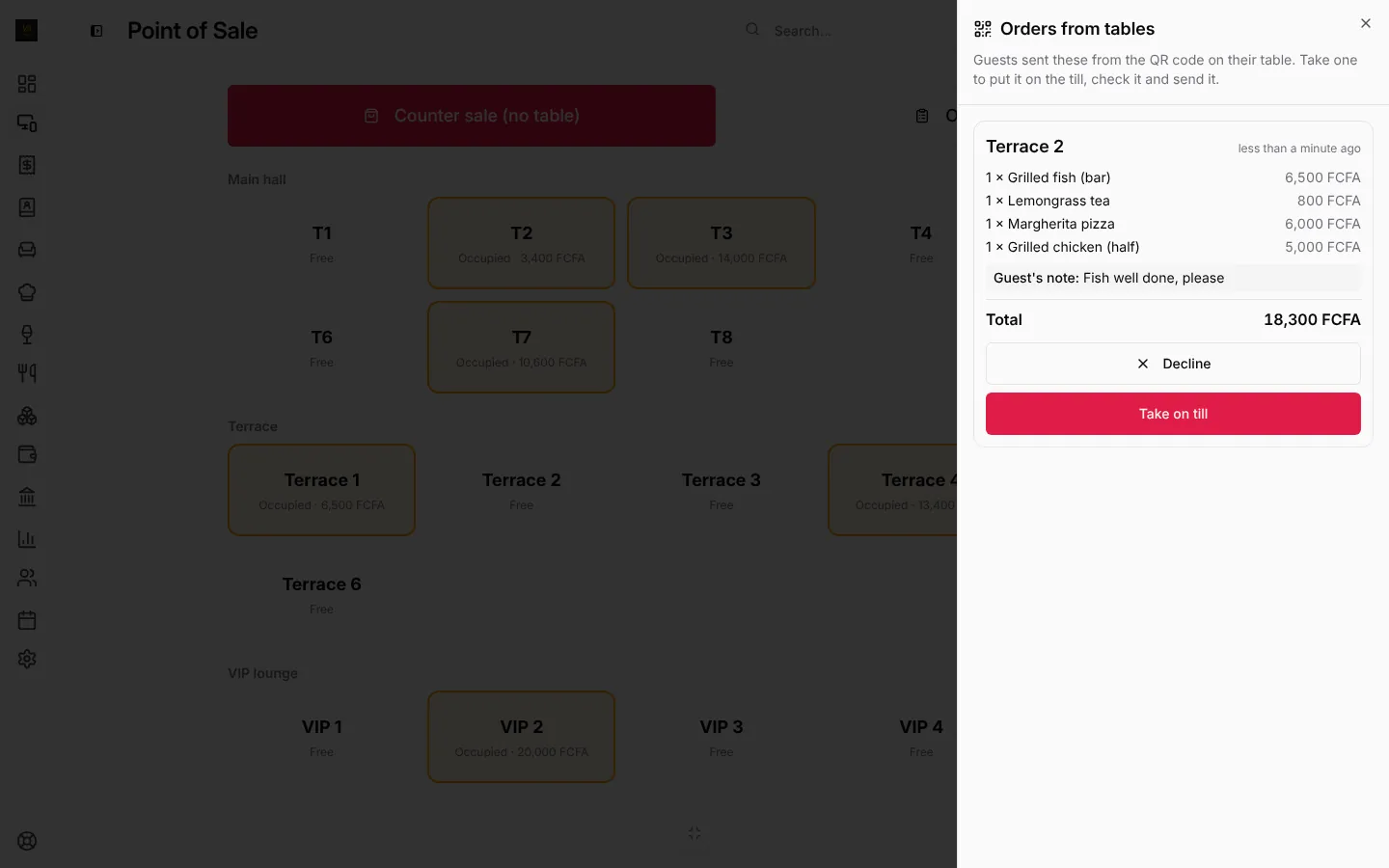
Guest orders arrive on every till and in the web app under From tables, with a count and an alert. Waiters and cashiers with the LoungeOS phone app get a notification.
A waiter opens the order, checks it and presses Take on till. From there it is a normal order: it goes on the table’s bill, food goes to the kitchen screen, drinks to the bar screen, stock comes off when it is paid, and manager approvals work as usual. If the kitchen is out of fish, the waiter presses Decline and the guest sees it straight away.
Why staff accept each order
Fully automatic QR ordering sounds faster, but in a bar it creates new problems: a guest who left an hour ago “orders” from a photo of the code, a table orders twice by mistake, or a dish that ran out reaches the kitchen. Asking a waiter to accept the order costs one tap and keeps the floor in control. It also keeps the waiter close to the table, which is where tips come from.
One code for the whole business
LoungeOS gives you one QR code for the business, not one per table. Guests pick their table when they order, so you print one poster design and put it everywhere: on tables, on the menu, at the bar and at the entrance. If a picture of the code ends up somewhere it shouldn’t, press New code and the old posters stop working.

What it does not do
- Online payment. Guests pay your staff the usual way, in cash, mobile money or card. LoungeOS takes no commission on your sales.
- Delivery and takeaway from home. The menu is for guests at your tables.
- Ordering through an offline till. Guest orders go through LoungeOS online, so keep the till connected during service.
Set it up in two minutes
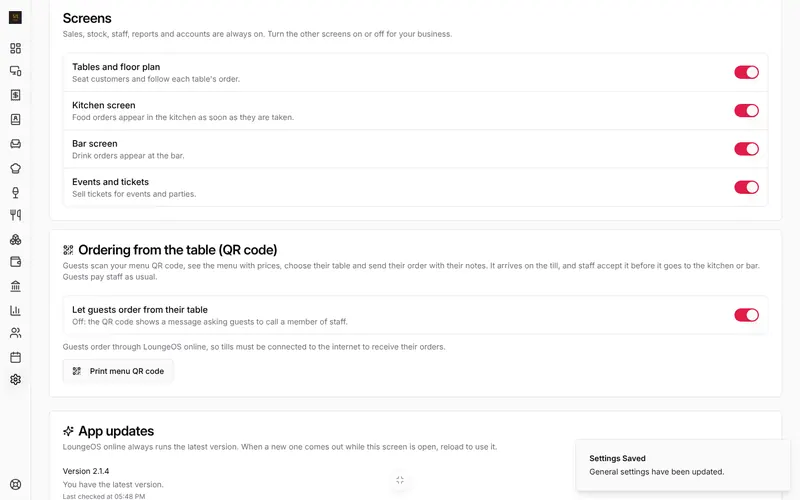
Turn it on in Business settings, General, under Ordering from the table (QR code), then press Print menu QR code. The step-by-step guide with screenshots is in the help centre: QR code table ordering.
Frequently asked questions
Which plans include QR ordering?
Business and Pro, and the 14-day free trial. See pricing.
Do guests need to download an app?
No. The menu opens in the phone’s browser after scanning the code.
What if a dish runs out during service?
Products you count show Sold out on the guest menu when they reach zero. For a dish you don’t count, set its quantity to 0 in Menu while it is unavailable, and decline any order that already includes it.
Run your next service on LoungeOS
Create your account, answer the setup wizard and your business is ready on day one. Try it free for 14 days with Business features. No payment up front.
Explore more
QR code table ordering
Switch it on, print the QR poster, take or decline guest orders.
Learn more →
QR code ordering: a practical guide
How QR ordering works, where it fails, and how to roll it out.
Read guide →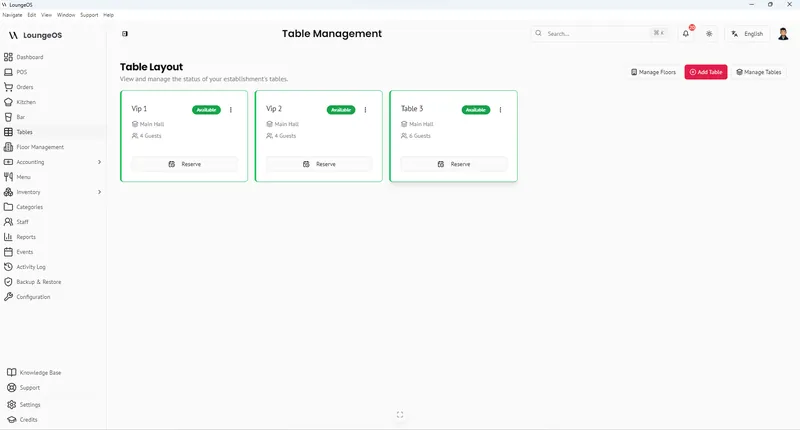
Table & Floor Management
Live table status by colour, floors and VIP areas, waiter sections, split and merge bills.
Learn more →