On this page
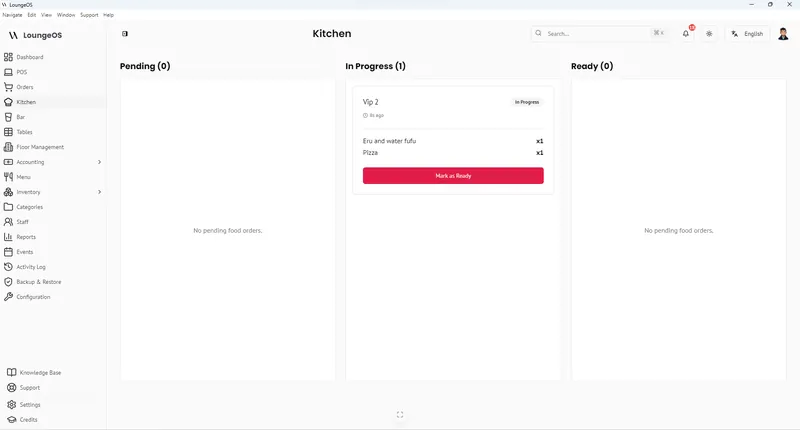
Any screen can be the kitchen or bar screen: a tablet on the wall, a laptop, or the phone app. Sign in as the chef or bartender and open Kitchen or Bar from the side menu.
How orders arrive
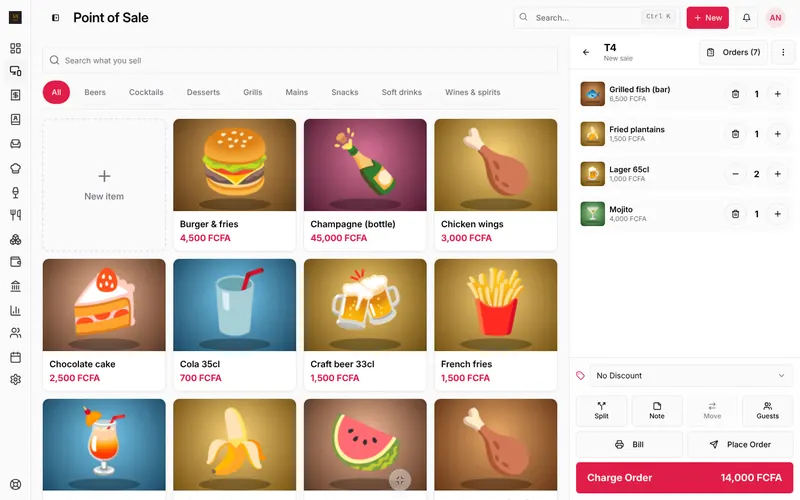
When a waiter presses Place Order, LoungeOS looks at each item’s category: kitchen categories (Grills, Mains…) go to the kitchen, bar categories (Beers, Cocktails…) go to the bar. A table that orders a grilled fish and two beers shows on both screens, each with only its own items.
Work through the orders
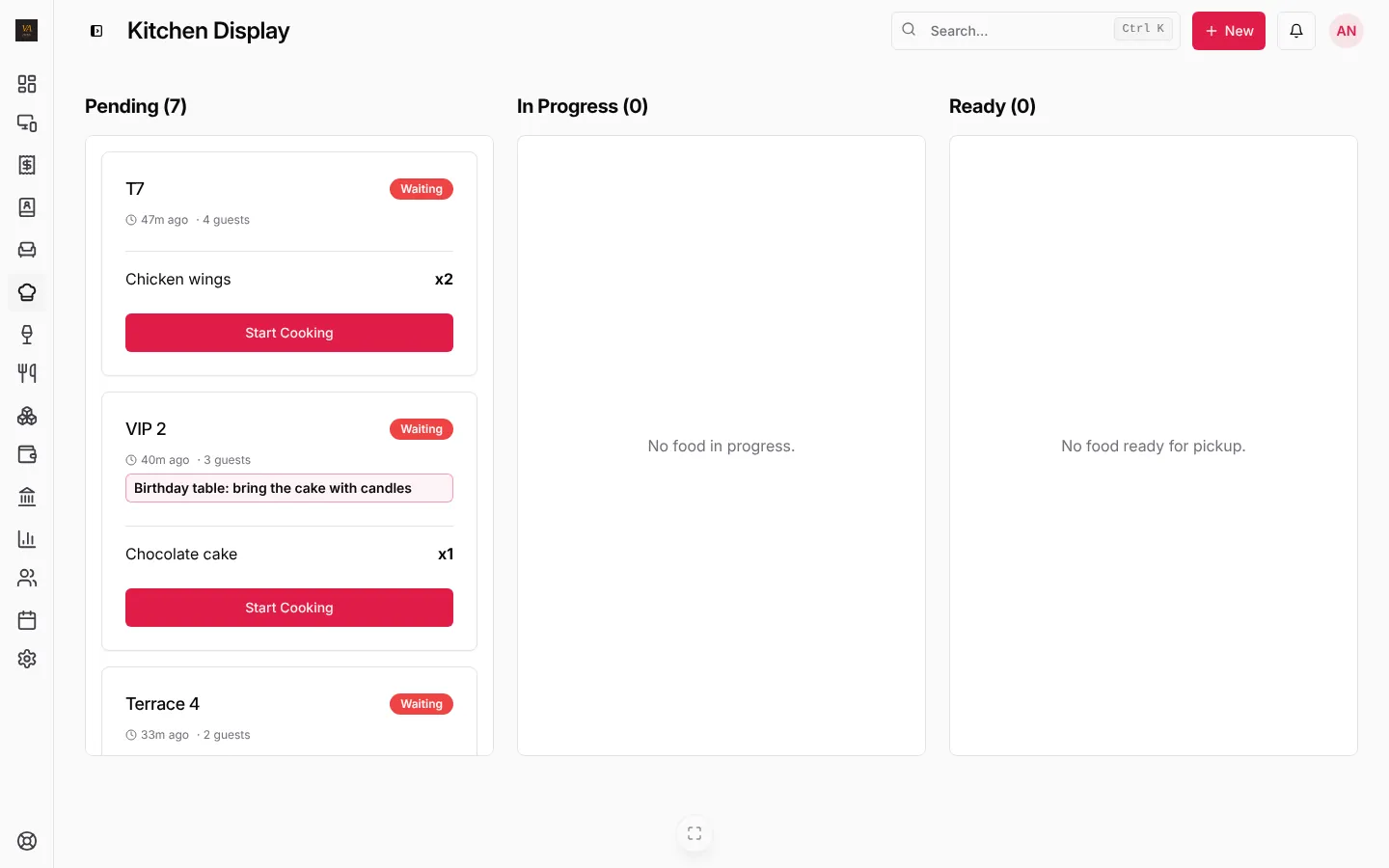
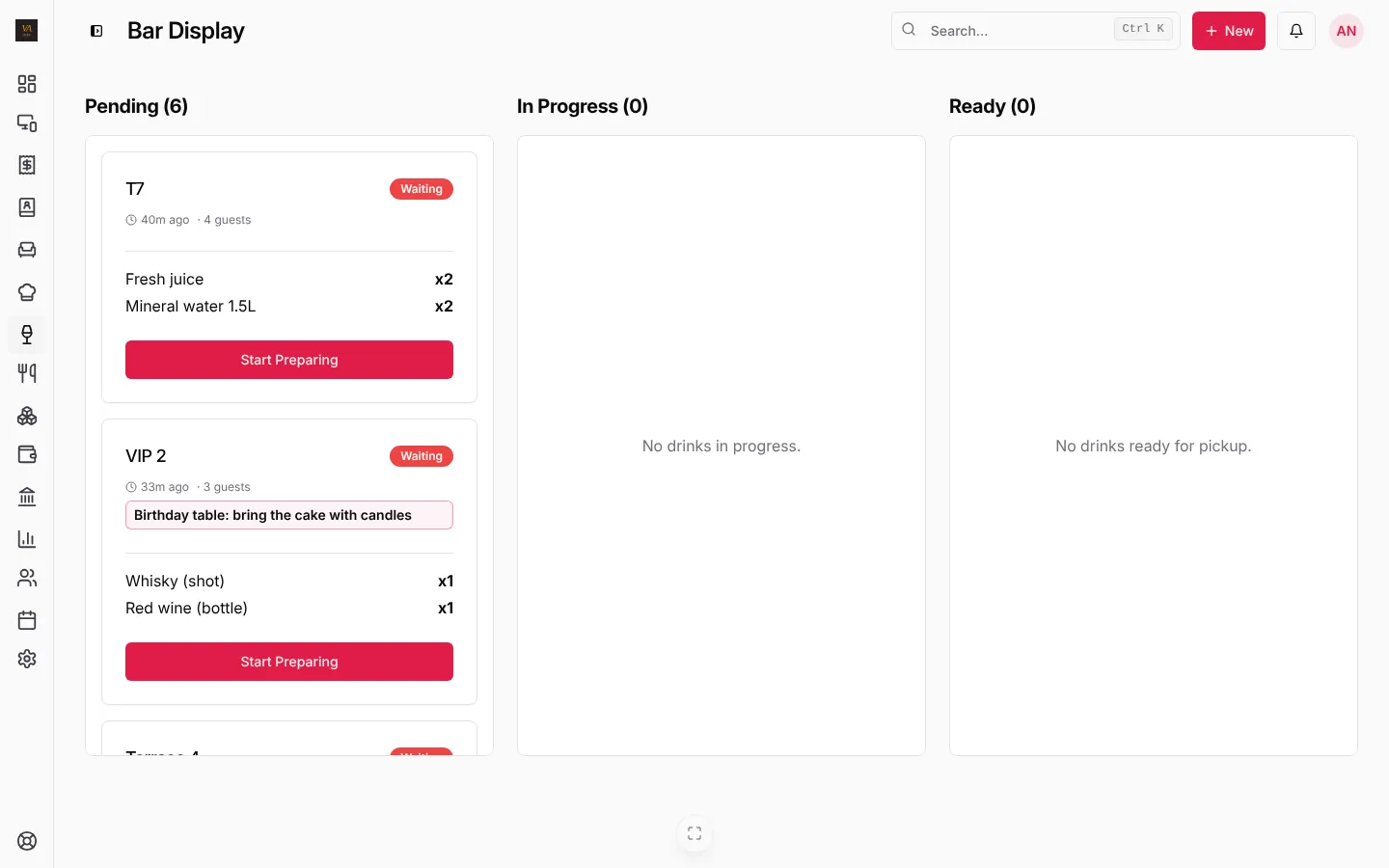
- New orders appear in Pending, oldest first, with the table, the time since it came in, the number of guests and any note.
- Press Start Cooking (kitchen) or Start Preparing (bar) when you begin. The card moves to In Progress.
- Press Mark as Ready when it is ready. The waiter who took the order gets a notification on the phone app.
The kitchen marking food ready does not move the drinks: the bar moves its own items. The order shows as ready on the till when both are done.
Notes from the table
Notes typed on the till (“no pepper”, “well done”, “birthday: bring the cake with candles”) show on the card in a box, and print on the tickets.
Late orders
The dashboard’s Needs attention box counts kitchen and bar tickets waiting more than 15 minutes, so the manager sees a slow kitchen before the table complains.
Paper tickets
Prefer paper? Turn on Print kitchen tickets and Print bar tickets in Business settings, Receipt, and choose each printer. Tickets print when the order is sent, then only what changed: items added, items removed or a new note. See Payment methods, receipts and printers.
Frequently asked questions
Drinks show up on the kitchen screen. Why?
Their category is set to Kitchen. Open Menu, Categories, and set it to Bar.
Can the waiter see when food is ready?
Yes: the order shows as ready on the till, and the waiter gets a phone notification if they use the phone app.
Stuck on a step? Write to support@loungeos.app or WhatsApp +237 679 690 703 and say which page you are on.