FAQ
Frequently asked questions
Straight answers about how LoungeOS works, what it costs, what you need to run it and how your data is protected.
About LoungeOS
What is LoungeOS?
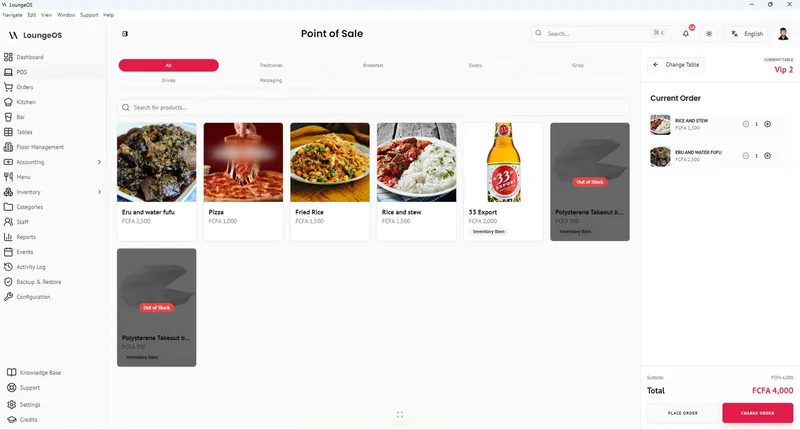
LoungeOS is an offline-first point of sale (POS) and management system for restaurants, bars, lounges, nightclubs, cafés and hotels. It handles table ordering, kitchen and bar display screens, payments including mobile money, inventory, staff permissions with an activity log, and double-entry accounting. It runs on a Windows computer in your venue and works without internet.
Who is LoungeOS for?
Any business that serves food or drinks: restaurants, bars, snack bars, lounges, nightclubs, cafés, fast-food outlets and hotel restaurants and bars. It is especially useful where the internet or power is unreliable, and where owners need tight control over cash and stock.
Where is LoungeOS made?
LoungeOS is developed in Cameroon and used across Africa and internationally. Support is available in English and French. See About LoungeOS.
What languages does LoungeOS support?
The application interface is available in English and French, with more languages planned for version 1.3.7. The website can be read in ten languages.
Offline use and hardware
Does LoungeOS work without internet?
Yes. LoungeOS runs on your own computer and local Wi-Fi network, so orders, kitchen and bar screens, payments, stock and reports all keep working during an internet outage. You need internet only to activate or renew your licence. See offline POS.
What hardware do I need?
One Windows 10 or 11 computer (64-bit, 4 GB RAM, 2 GB free storage) as the host, a Wi-Fi router, and any phones, tablets or computers with a web browser as terminals. A thermal receipt printer is optional but recommended. See the hardware guide.
How many devices can I connect?
As many as you need. Every plan includes unlimited terminals, with no per-device fee.
Is there a mobile app?
Phones and tablets use LoungeOS in their web browser, connected to the host computer on your Wi-Fi. There is nothing to install on them. The host application runs on Windows, and a macOS version is in development.
What happens during a power cut?
Phones and tablets run on battery. Put the host computer and the Wi-Fi router on a small UPS, or use a laptop as the host, and service continues. See running a restaurant during power and internet outages.
How do tablets connect to LoungeOS?
Connect them to the same Wi-Fi as the host computer, then open http://<host-IP>:2304 in the browser, for example http://192.168.1.15:2304. Allow port 2304 in the Windows firewall on the host.
Pricing and billing
How much does LoungeOS cost?
In the FCFA zone, LoungeOS costs 30,000 FCFA per month, 25,000 FCFA per month on a 6-month plan, or 20,000 FCFA per month on a yearly plan. Prices are set by region, for example ₦35,000 a month in Nigeria and US$49 a month in the US. Every plan includes every feature and unlimited terminals. See pricing.
Is there a free trial?
Yes. 30 days, every feature, unlimited terminals, and no credit card required.
Do you charge per device or take a percentage of sales?
No. LoungeOS is a flat subscription with unlimited terminals, and we take no percentage of your sales.
Can I cancel at any time?
Yes. Monthly plans can be cancelled at any time. 6-month and yearly plans are paid upfront at a lower monthly price.
Setup and activation
How long does setup take?
Installation and licence activation take about five minutes. Entering your menu, tables and staff typically takes an hour or two, depending on menu size. You can import stock lists from CSV.
How do I activate LoungeOS?
Create an account at account.loungeos.app, choose the trial or a plan, open LoungeOS and copy your Machine ID. Paste it in your account dashboard to generate a licence key, then paste the key into LoungeOS and click Activate. Full steps are on the download page.
Can I move LoungeOS to a new computer?
Yes. Back up your database, install LoungeOS on the new computer, restore the backup and activate the licence on the new machine. Contact support if your licence needs to be moved.
Features
Does LoungeOS have a kitchen display system?
Yes. Food items go to the kitchen display and drinks to the bar display automatically, with Pending, In progress and Ready columns and audio alerts. See kitchen display system.
Can LoungeOS prevent employee theft?
It removes the most common opportunities. There are eight roles with limited permissions, and manager approval is required to remove items from sent orders or to split and merge bills. Every cancellation needs a reason, and every action goes into a searchable activity log. See loss prevention.
Does LoungeOS support mobile money?
Yes. Cashiers can record MTN Mobile Money and Orange Money payments with the transaction reference, as well as cash and card, and split one bill across methods. See mobile money payments.
Does LoungeOS include accounting?
Yes. LoungeOS keeps a double-entry ledger and produces a profit and loss statement, balance sheet and cash-flow statement from your sales, purchases and expenses. See restaurant accounting.
Can I manage several restaurants?
Each venue runs its own LoungeOS installation. For groups and multi-site operations, the Enterprise plan adds setup, training and custom integrations. Contact sales.
Security and data
Where is my data stored?
On your host computer, in a local database. Sales and stock data are not sent to external servers during operation.
How do I back up my data?
Click Backup Database to download an encrypted backup file, or enable automatic backups. Keep copies on a USB drive and in cloud storage. If your computer fails, install LoungeOS on another one and restore the backup.
What should I do after the first login?
Change the default Super Admin password immediately, then create a personal account for each staff member with the right role. Never share the Super Admin login.
Run your next service on LoungeOS
Install LoungeOS on a Windows computer, connect your tablets and phones over Wi-Fi, and run real service for 30 days. Free, no credit card.
Explore more
Pricing
One plan with every feature and unlimited terminals, priced for your region. 30-day free trial.
Learn more →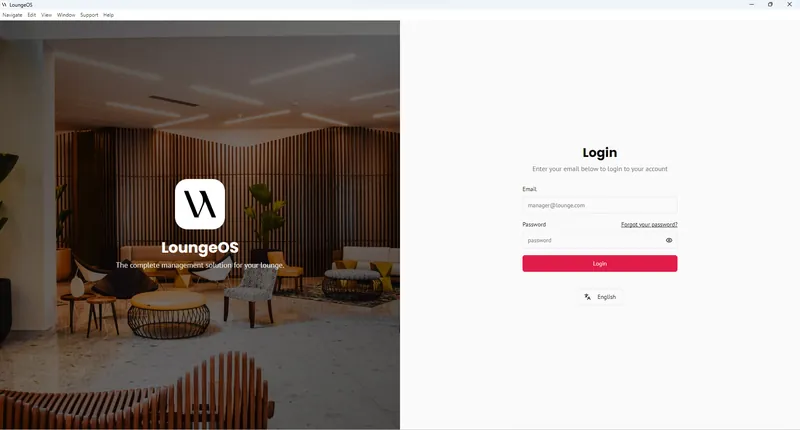
Download LoungeOS
Windows 10 & 11 installer, requirements, activation steps and network setup.
Learn more →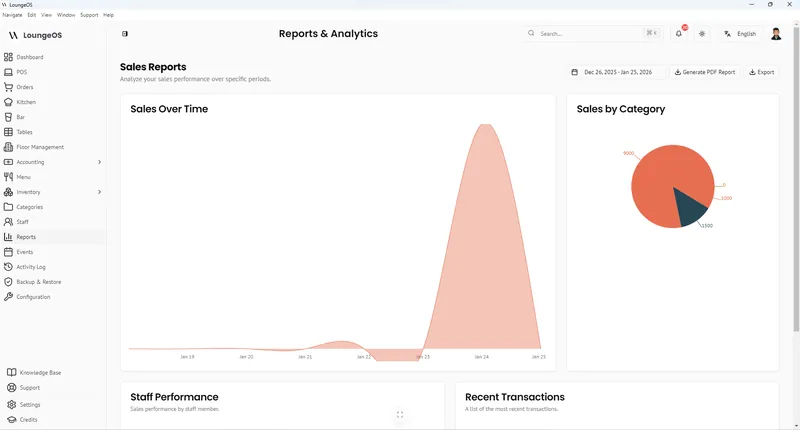
All LoungeOS features
Every LoungeOS feature in one place: offline POS, table management, kitchen and bar displays, inventory, staff permissions, audit logs, mobile money and accounting.
Learn more →