On this page
What needs a manager
| Action | Where | Needs a manager |
|---|---|---|
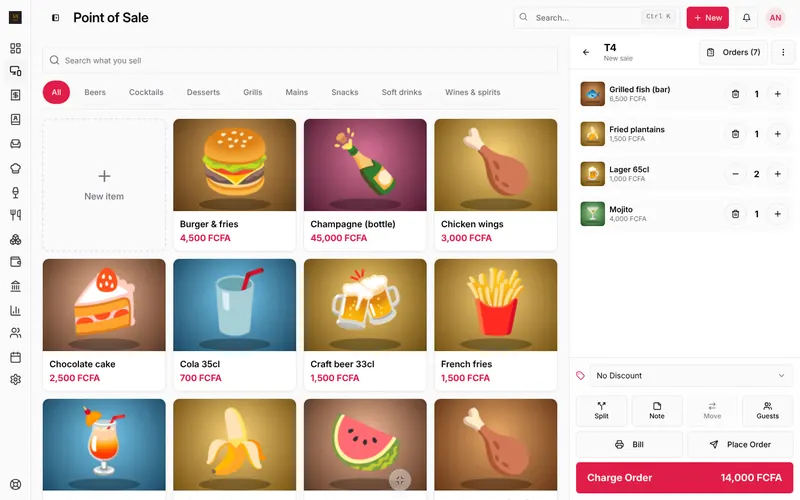
| Remove items before the order is sent | Till, − or the bin | No |
| Remove items already sent, or fewer of them | Till | Yes |
| Change an item’s price | Till, tap the line | Yes |
| Cancel the whole order | Till, ⋮, Cancel Order | Yes |
| Refund a paid sale | Till, Orders, Paid and cancelled | Yes |
| Open a paid order again | Till, Orders, Paid and cancelled | Yes |
Super Admins and Managers do these straight away. Anyone else sees A manager must approve: a manager taps their name and enters their PIN on the same screen, and the action goes through under both names. Too many wrong PINs lock approval for a few minutes.
No manager has a PIN yet? A manager sets one in Staff (see Add your team).
Cancel an order
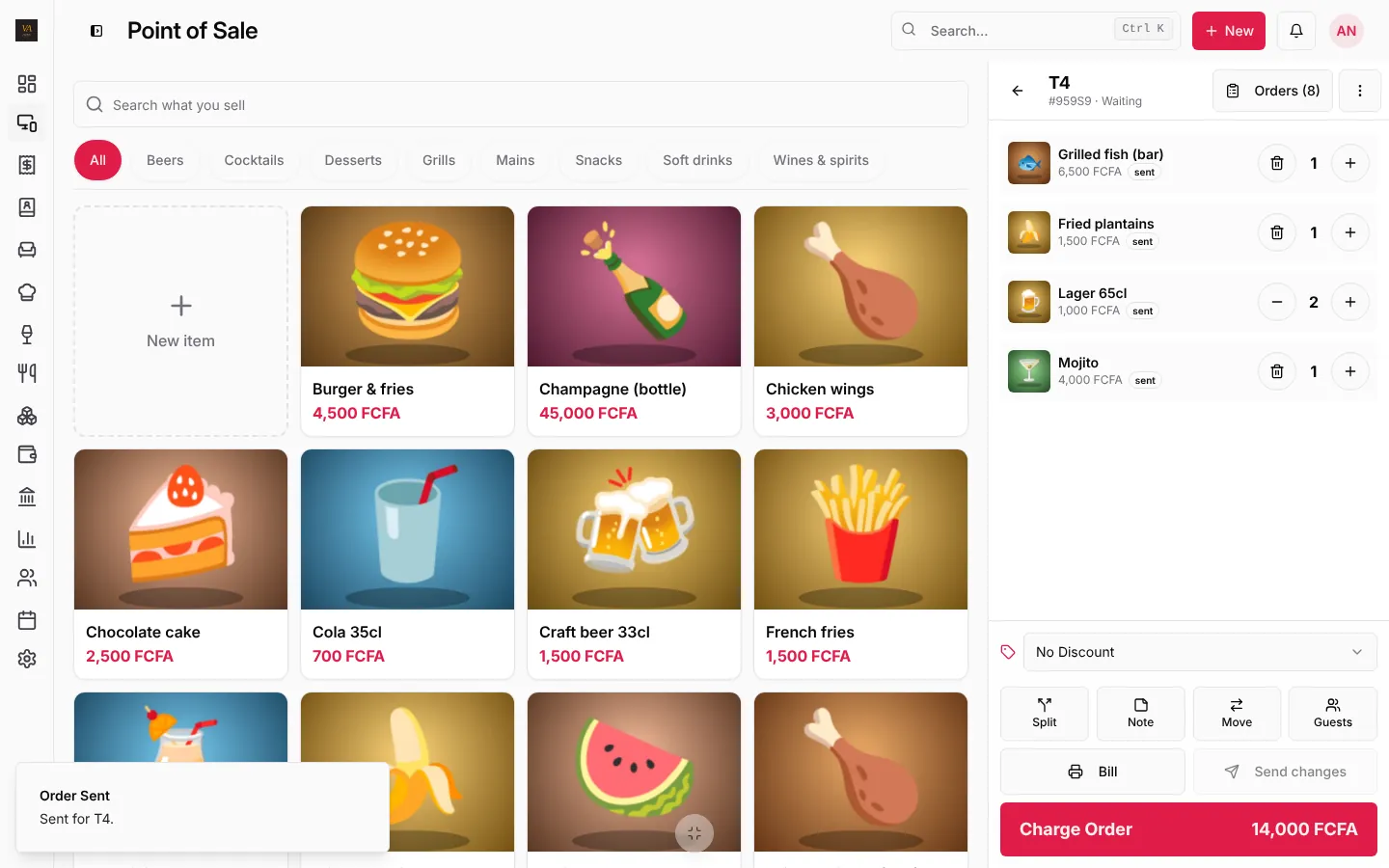
- Open the order on the till.
- Press ⋮ at the top of the order, then Cancel Order.
- Pick or type the reason and confirm (with a manager’s PIN if asked).
The items go back in stock and the kitchen and bar screens drop them.
Refund a sale
- On the till, press Orders, then Paid and cancelled.
- Find the sale and press Refund.
- Choose the items the customer brings back, the reason (Item returned, Wrong item, Customer not satisfied, Charged twice) and Money given back by (cash, MoMo…). Tick Put the items back in stock if they can be sold again.
- Press Refund (amount).
The money comes off that day’s takings and the accounts follow. A full refund marks the sale as cancelled with the reason.
Open a paid order again
Paid by mistake, or the table wants more after paying? In Orders, Paid and cancelled, press Open again. The order is open again on its table, so items can be added or changed before it is paid again.
Where to check
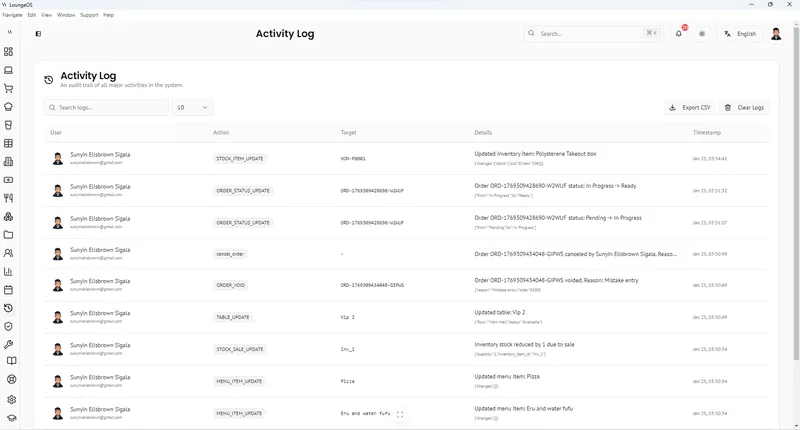
- Staff, Activity Log: every cancellation, refund, reopen, price change and drawer opening without a sale, with who did it and who approved.
- The dashboard’s Needs attention: refunds and cancelled orders of the day.
- Reports: Refunds, Cancelled and Discounts for any period.
Frequently asked questions
Can a waiter cancel an order they just typed by mistake?
Before pressing Place Order, yes: remove the items or clear the sale. After it is sent, a manager approves, because the kitchen may already be cooking it.
Stuck on a step? Write to support@loungeos.app or WhatsApp +237 679 690 703 and say which page you are on.