On this page
Put a sale on a tab
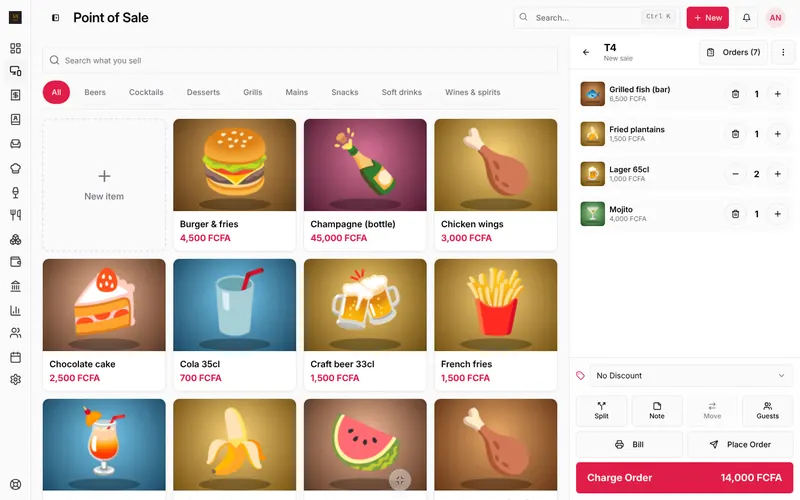
- Take the order as usual, then press Charge Order.
- Press Pay later.
- Whose tab? Search the customer by name or phone, or type a new name and press Add (a phone number helps you reach them).
- Confirm. The receipt says whose tab it is on and how much they owe in all.
A tab sale counts as a sale that day, with the method “Pay later”. The money comes in later.
See who owes what
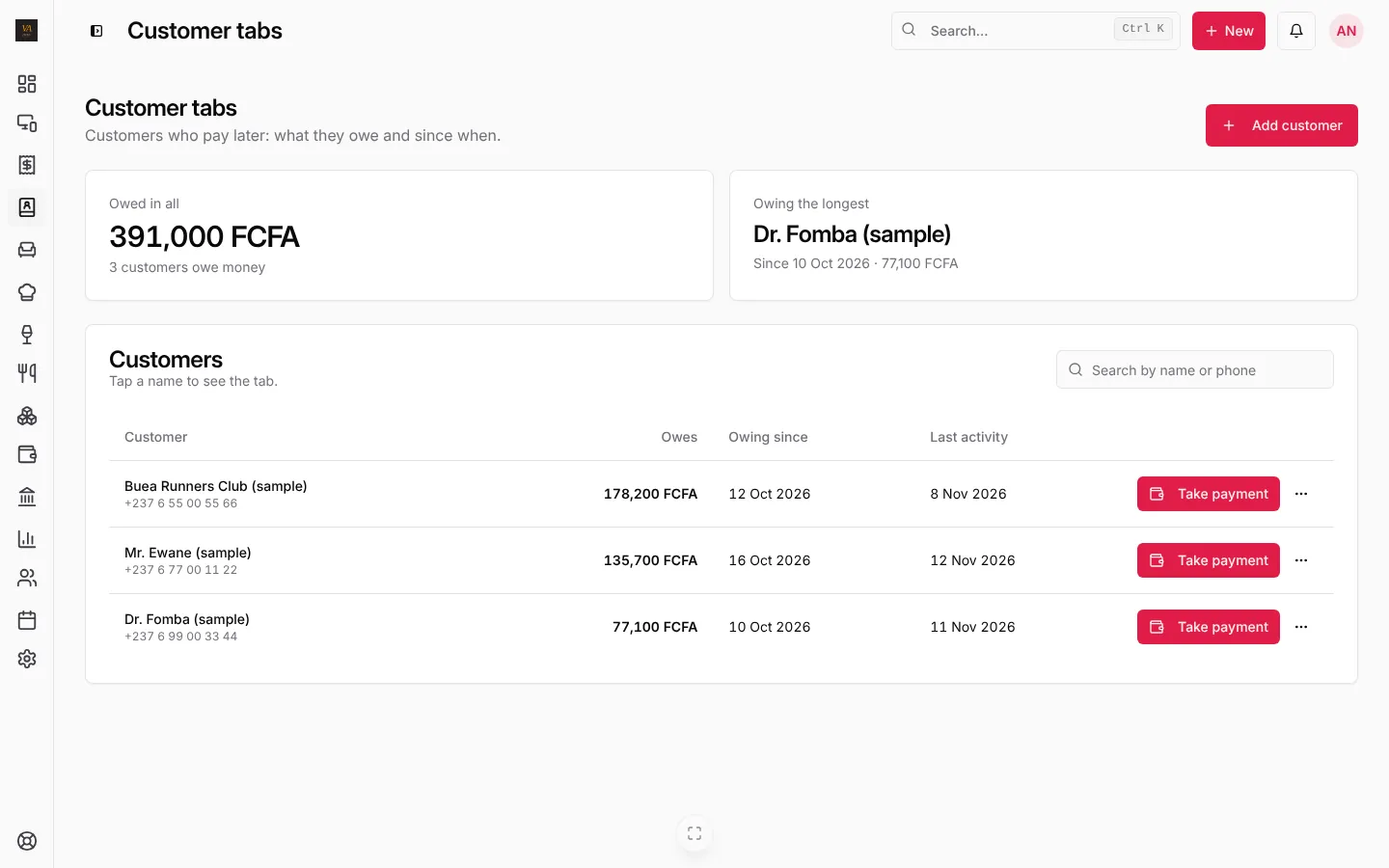
Open Customer tabs from the side menu. At the top: Owed in all, how many customers owe money, and who has been Owing the longest. Below, every customer with what they owe, since when and their last activity.
Take a payment on a tab
- On Customer tabs, press Take payment next to the customer.
- Type the Amount paid (all or part of what they owe) and choose Paid with: cash, MTN Mobile Money, Orange Money…
- Press Confirm payment. LoungeOS shows what they still owe, or that they are paid up.
Tab payments count as money taken that day, never as new sales, so your sales are not counted twice. In the accounts, a tab sale goes to receivables and the payment clears it.
Keep tabs under control
- The dashboard’s Needs attention shows the total owed on tabs and the oldest debt, with View tabs.
- Only cashiers and managers can take tab payments. Only managers can remove a customer, and their past sales keep their name.
Frequently asked questions
Can a customer pay part now, part on the tab?
Yes. Press Two methods in the payment window: one part in cash or MoMo, the rest with Pay later.
Where do I see everything a customer bought on the tab?
Tap the customer’s name on Customer tabs: you see every sale on the tab and every payment, with dates.
Stuck on a step? Write to support@loungeos.app or WhatsApp +237 679 690 703 and say which page you are on.