In this guide
On a Friday night, the most expensive moment in a lounge is the one where a table wants another round and nobody sees them. A QR code on the table fixes that moment. It does not replace waiters, and it should not.
Three kinds of QR code
- QR menu. The code opens your menu as a web page or PDF. Guests read, then order from a waiter. Cheap and useful, but it does not take orders.
- QR ordering with staff approval. Guests build their order on the phone, choose their table and send. A waiter or cashier accepts it on the till, then it goes to the kitchen and bar like any order.
- Fully automatic QR ordering. The order goes straight to the kitchen, often with online card payment.
The third is common in Europe and the US. In most African venues, guests pay cash or mobile money, and a ghost order that reaches the grill costs real food. The second model is the sweet spot.
Where QR ordering helps most
- Terraces, rooftops and large lounges, where waiters cover many tables and guests wait.
- Second and third rounds. The first order is usually taken by a waiter; repeat drinks are where QR codes shine.
- Busy match nights and events, when every waiter is running.
- Guests who want to take their time with photos and prices before ordering.
Where it fails
- Bad Wi-Fi or mobile data at the table: the menu loads slowly and guests give up.
- Orders nobody watches. If no one is assigned to the incoming orders, they wait longer than the waiter would have taken.
- Codes that leak. A photo of the code shared outside lets people “order” from home. Staff approval and a way to retire old codes solve it.
- Menus out of date. A dish that ran out still shows. Use your POS menu as the source, so stock and availability follow.
How to roll it out
- Start with one area (the terrace or the VIP lounge) for a week.
- Name a person per shift who watches incoming table orders on the till or the phone app.
- Print one clear poster with your logo: “Scan, choose your table, send. A waiter confirms your order.” Put it on every table and at the bar.
- Keep the menu short and with photos. Thirty well-photographed items sell better than a hundred lines of text.
- Check the numbers after a week: average spend per table and number of rounds, against the week before.
How it works in LoungeOS
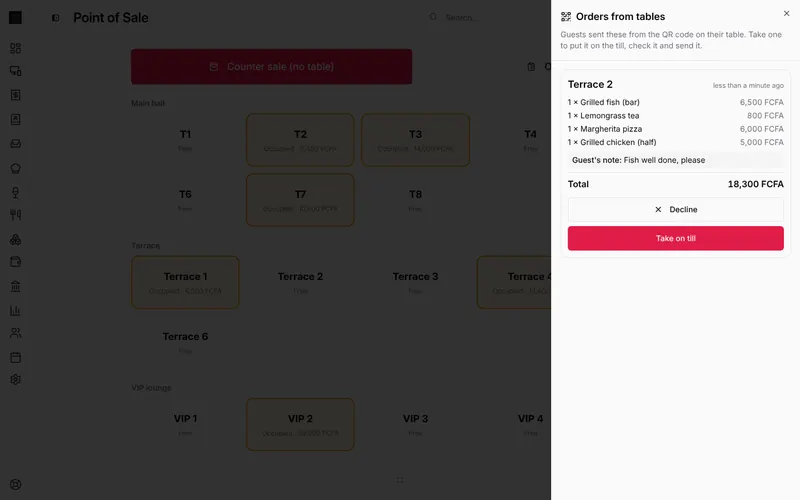
LoungeOS has QR ordering with staff approval on the Business and Pro plans. There is one code for the whole business: guests pick their table when they order, so one poster works everywhere. Orders arrive under From tables on every till, with a phone notification for waiters. Take on till puts the order on the table’s bill and sends it to the kitchen and bar; Decline tells the guest straight away. New code retires old posters.
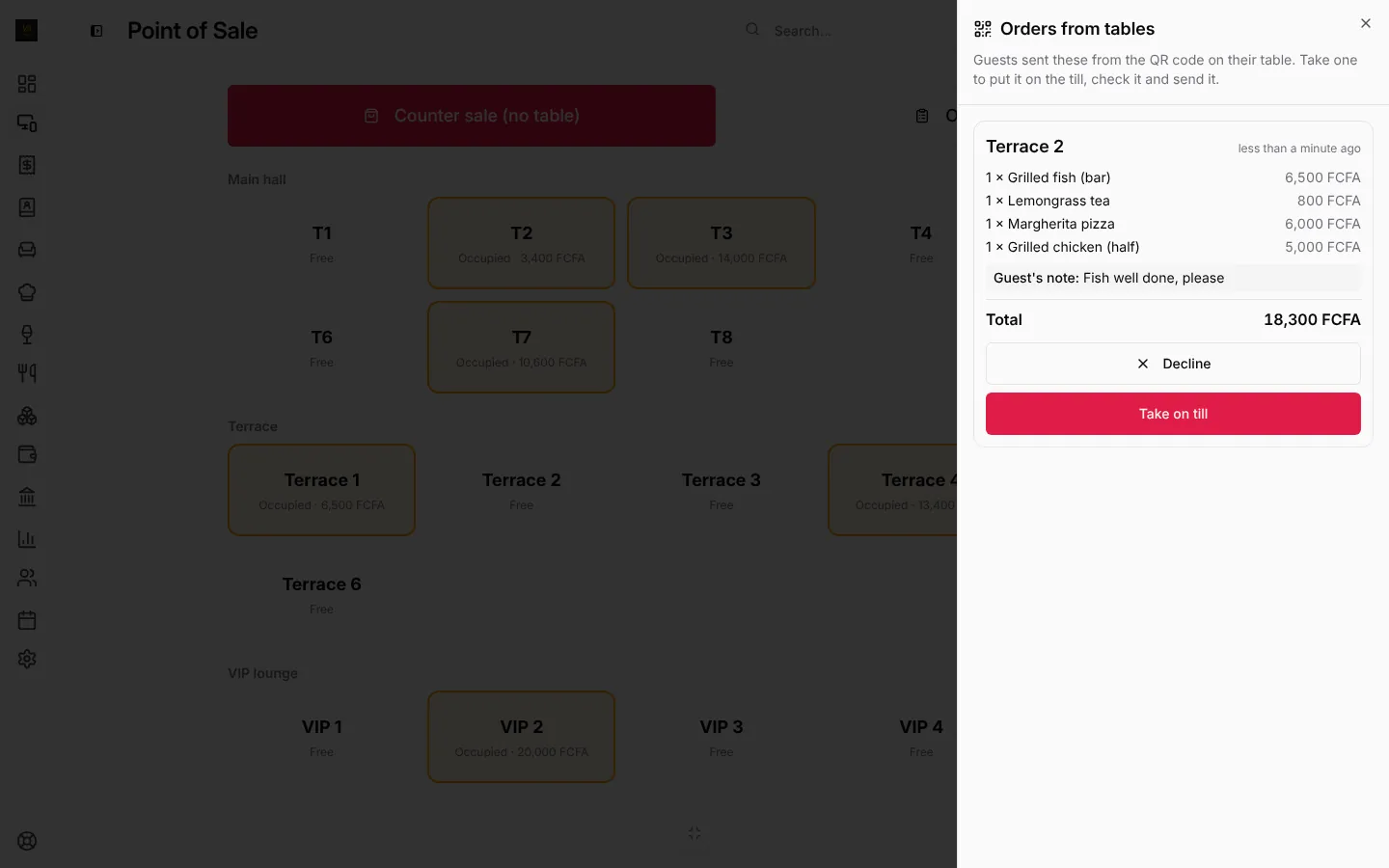
Guests pay staff the usual way, in cash, mobile money or card, and LoungeOS takes no commission. Step by step: QR code table ordering.
Frequently asked questions
Do guests need to install an app to order with a QR code?
Not with a good system. The menu should open in the phone’s browser after scanning.
Should I have one QR code per table?
Not necessarily. Per-table codes save the guest one tap but mean printing and replacing a code for every table. A single code where the guest picks the table is easier to manage.
Does QR ordering replace waiters?
No. It removes the waiting, not the service. Waiters still serve, clear, upsell and take payment.
Run your next service on LoungeOS
Create your account, answer the setup wizard and your business is ready on day one. Try it free for 14 days with Business features. No payment up front.