On this page
All of this is in Business settings (the cog at the bottom of the side menu). Only the owner and managers can change it.
Payment methods
- Open Business settings, then the Financial tab.
- Under Payment methods, switch on the ones you take. Cash, MTN Mobile Money, Orange Money and Card are ready; Bank transfer is there to switch on.
- Turn on Ask for a reference for methods where the cashier should type the transaction number (mobile money, bank transfer). The reference is saved with the sale, so you can match it against your MoMo or OM statement.
- To add your own (Wave, a store card, a voucher), type its name under New method, pick its type and press Add the method.
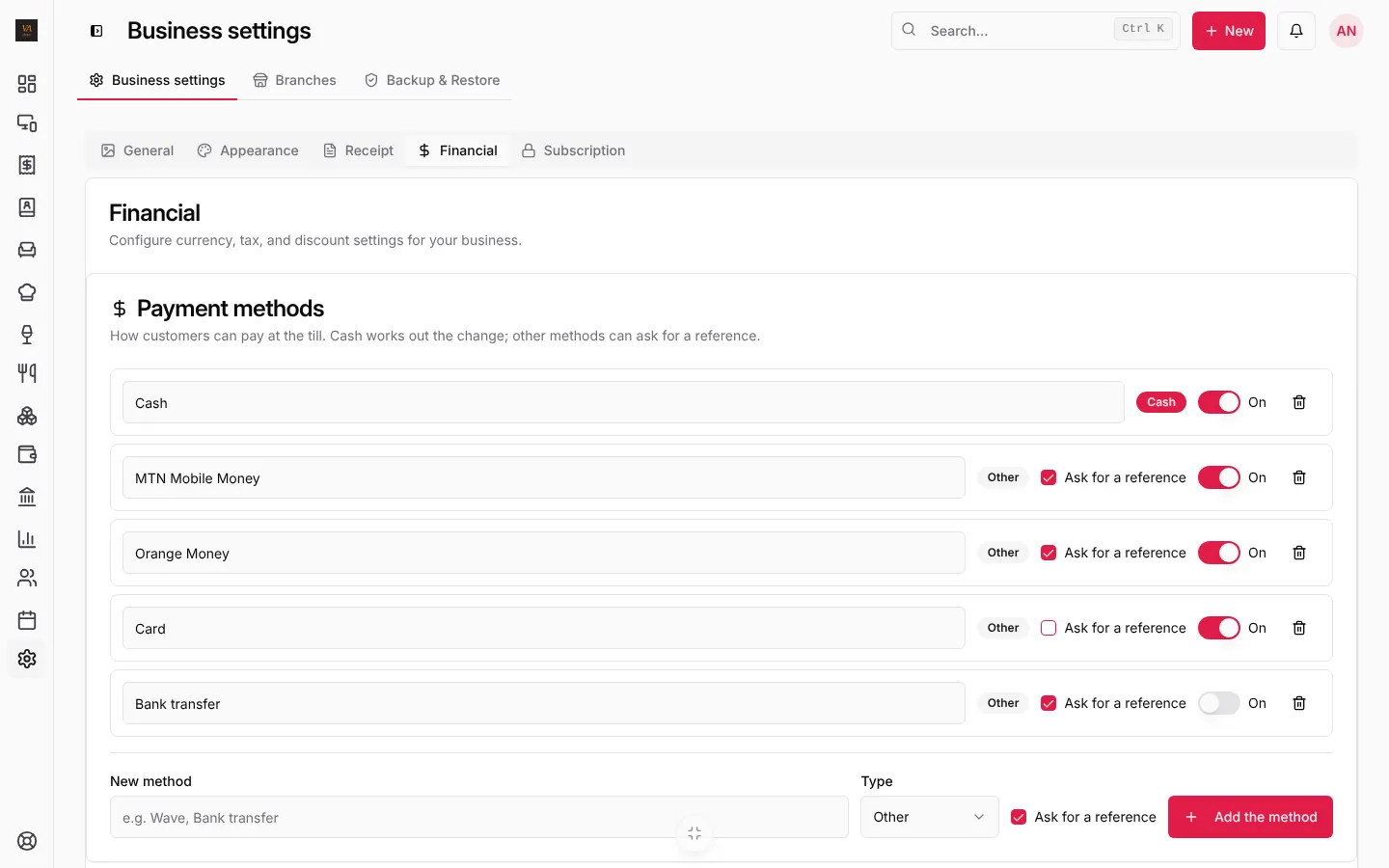
On the same tab you set the currency, tax (only if you charge it) and discounts the till may offer.
What the receipt shows
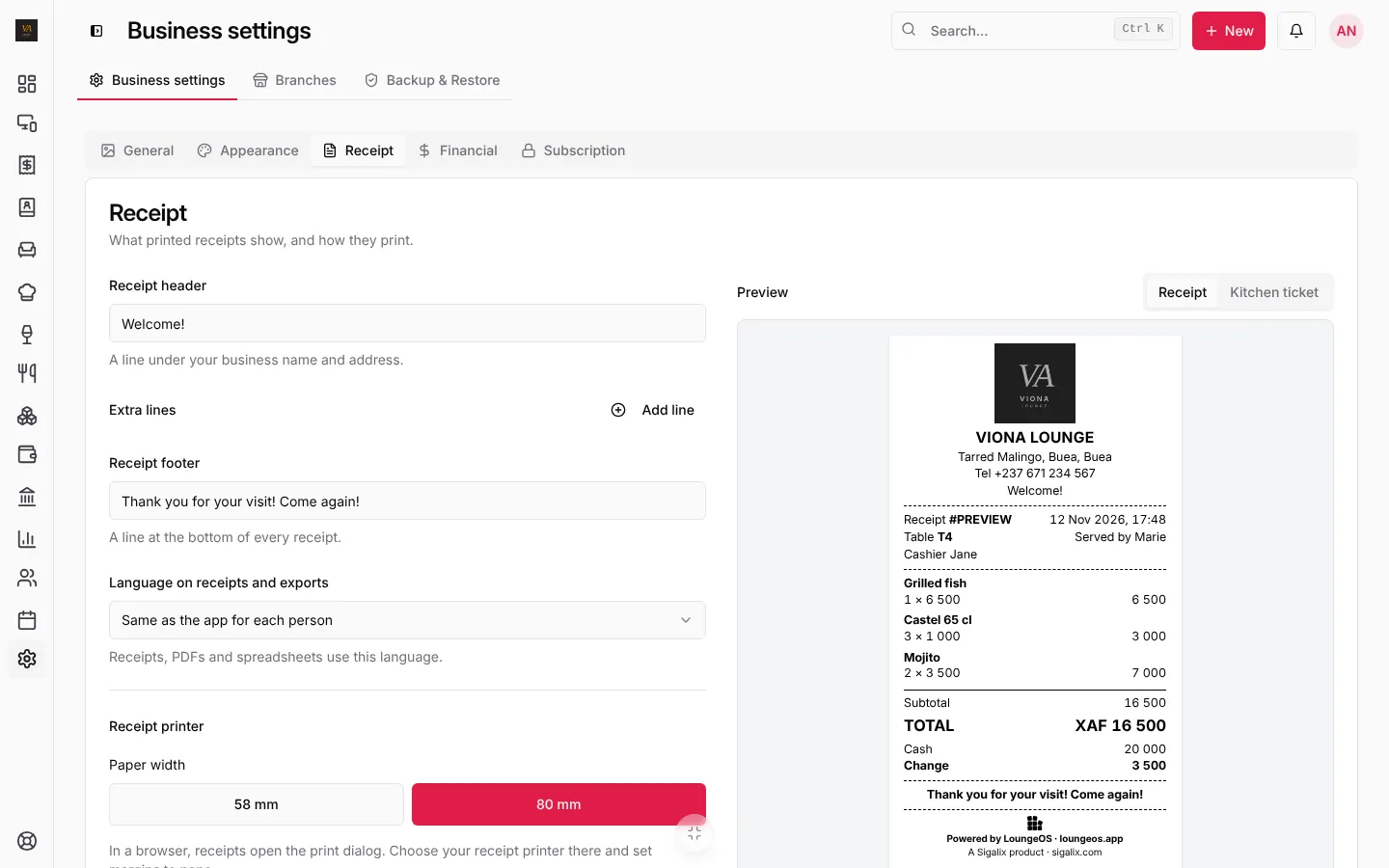
Open the Receipt tab:
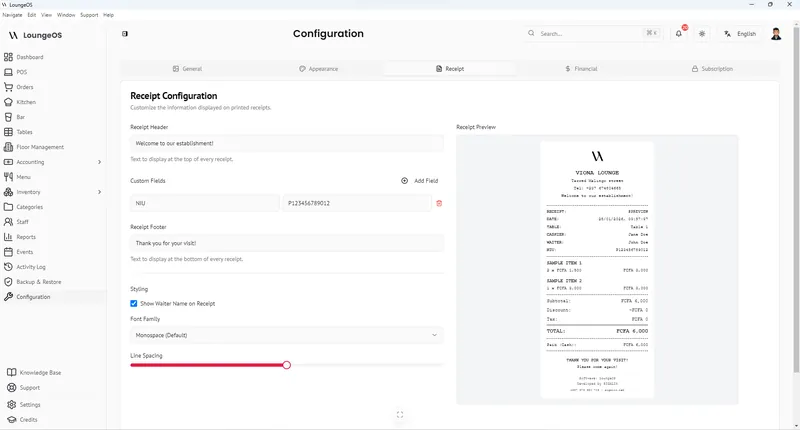
- Receipt header: a line under your business name and address (“Welcome!”).
- Extra lines: for example your NIU or RCCM, with Add line.
- Receipt footer: the line at the bottom (“Thank you for your visit!”).
- Show who served on the receipt, the font and line spacing.
- Language on receipts and exports: English, French, or the language of each person.
The preview on the right shows the result as you type, for the receipt and for the kitchen ticket.
Connect the receipt printer (Windows and Mac app)
- Plug in the thermal printer and install its driver (Xprinter, Epson and most USB ESC/POS printers work).
- In the Receipt tab, under Receipt printer, pick the Paper width: 58 mm or 80 mm.
- Pick the Printer, and turn on Print straight to this printer without the print dialog for one-tap receipts.
- Press Print test receipt.
These printer choices are saved on this till as soon as you pick them, so each till can use its own printer. In a browser, receipts open the print dialog: pick the receipt printer there and set the margins to none.
Kitchen and bar tickets
Under Kitchen and bar tickets, turn on Print kitchen tickets and Print bar tickets and choose each printer (or Same as receipts). Each time an order is sent, food prints in the kitchen and drinks at the bar. Later tickets only print what changed: added items, removed items or a new note.
Cash drawer
A cash drawer plugged into the receipt printer opens from the till. Turn on Open the drawer after cash payments to open it on its own, and use Open the drawer now to test. Opening the drawer without a sale is written in the activity log.
Frequently asked questions
Nothing prints. What do I check?
On Windows, open Printers & scanners and check the printer is not “Offline” and has no stuck jobs. Then print the test receipt again from Business settings.
Does LoungeOS take a percentage of mobile money payments?
No. Customers pay you the way they always do. LoungeOS records the method, amount and reference, and puts them in your reports and accounts.
Stuck on a step? Write to support@loungeos.app or WhatsApp +237 679 690 703 and say which page you are on.