In this guide
- The shopping list at a glance
- The host computer: the heart of the system
- Wi-Fi: the part everyone underestimates
- Waiter devices: phones or tablets?
- Kitchen and bar screens
- Thermal receipt printers
- Power: the UPS is not optional
- Three example setups
- Hardware checklist before opening night
- Frequently asked questions
Traditional POS vendors sell terminals, printers and screens as a locked bundle. Modern browser-based systems like LoungeOS turn ordinary devices into terminals, so the hardware question becomes much simpler and cheaper. Here’s what each piece does, what specification to look for and where people go wrong.
The shopping list at a glance
| Item | Required? | What to look for |
|---|---|---|
| Host computer | Yes | Windows 10/11 64-bit, 4 GB RAM min (8 GB better), SSD, battery if laptop |
| Wi-Fi router | Yes | Dual-band (2.4 + 5 GHz), reliable brand, placed centrally |
| Waiter devices | Yes (or use staff phones) | Any smartphone with a modern browser, 5.5”+ screen |
| Kitchen/bar screen | Recommended | 8–10” Android tablet or old laptop, wall or stand mount |
| Thermal receipt printer | Recommended | 80 mm, USB or Ethernet, compatible with your host OS |
| UPS / inverter | Strongly recommended | Enough capacity for host + router for your typical outage |
| Cash drawer | Optional | Printer-driven (RJ11) or standalone |
The host computer: the heart of the system
In an offline-first system, the host computer is the server. Every order passes through it, so it deserves care.
- Operating system: for LoungeOS, Windows 10 or 11 (64-bit).
- Memory: 4 GB minimum. 8 GB gives comfortable headroom.
- Storage: an SSD makes everything faster. LoungeOS needs about 2 GB free for its database and menu photos.
- Laptop or desktop? A laptop is usually better for venues with power cuts because its battery acts as a built-in UPS. Desktops need an external UPS.
- Placement: in the office or behind the counter, ventilated, away from the kitchen’s heat and grease, and not where customers can touch it.
- Discipline: don’t use the host for browsing or games. Disable automatic restarts for updates during opening hours.
Wi-Fi: the part everyone underestimates
When staff say “the POS is slow”, it’s usually the Wi-Fi. A local POS doesn’t need internet, but it needs a solid local network.
- Use a dual-band router. 5 GHz is faster and less congested. 2.4 GHz reaches further through walls.
- Place it centrally and high, not inside a metal cabinet or behind the bar fridge.
- Large or multi-floor venues need a mesh system or access points, so the terrace and the VIP room get signal too.
- Separate the guest Wi-Fi. Customers should never share the network your POS runs on. Use the router’s guest network feature.
- Give the host a fixed IP address (DHCP reservation in the router). Tablets then always find it at the same address, for example
http://192.168.1.15:2304for LoungeOS. - Test signal at every table and in the kitchen with a phone before opening.
Waiter devices: phones or tablets?
Staff phones are the cheapest option. Every waiter already has one. Each waiter logs in with their own account, so orders are attributed to them. If you prefer venue-owned devices, buy mid-range Android phones with a 6” screen and a protective case. They’re cheaper than tablets and fit in an apron.
Tips:
- Keep devices charged: a charging station by the pass, and power banks for long nights.
- Turn on auto-lock and use personal logins. In LoungeOS, inactive sessions also log out after two hours.
Kitchen and bar screens
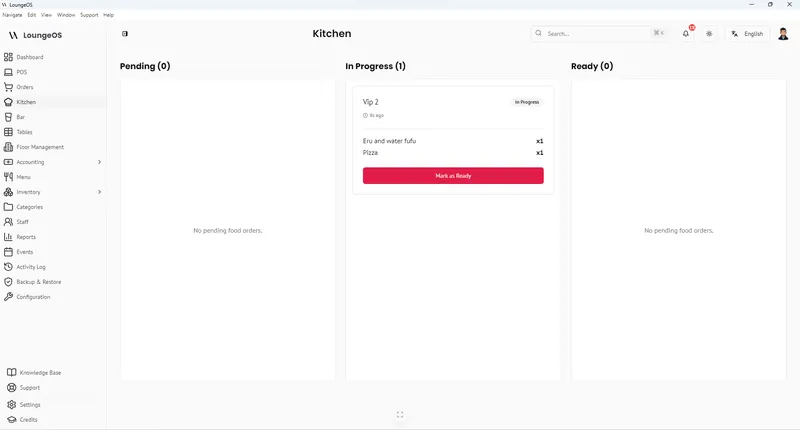
A kitchen display system just needs a screen with a browser:
- An 8–10” Android tablet on a wall bracket is the most common choice.
- An old laptop works well where there’s a counter.
- Big kitchens can use a monitor or TV with a small PC.
Kitchens are hostile environments, so mount screens away from steam and fryers and protect tablets with a case or a screen protector. Bars need screens out of reach of splashes.
Thermal receipt printers
Receipt printers in hospitality are almost always thermal: no ink, fast, quiet.
- 80 mm paper is the standard width for restaurant receipts. 58 mm printers are cheaper but cramped.
- Connection: USB (to the host) or Ethernet (to the network). USB is simplest for a single printer at the cashier.
- Compatibility: many printers use the ESC/POS command standard. Install the Windows driver and print a test page from the host before buying in bulk.
- Paper stock: keep at least a week of rolls. Running out on a Saturday is a classic avoidable failure.
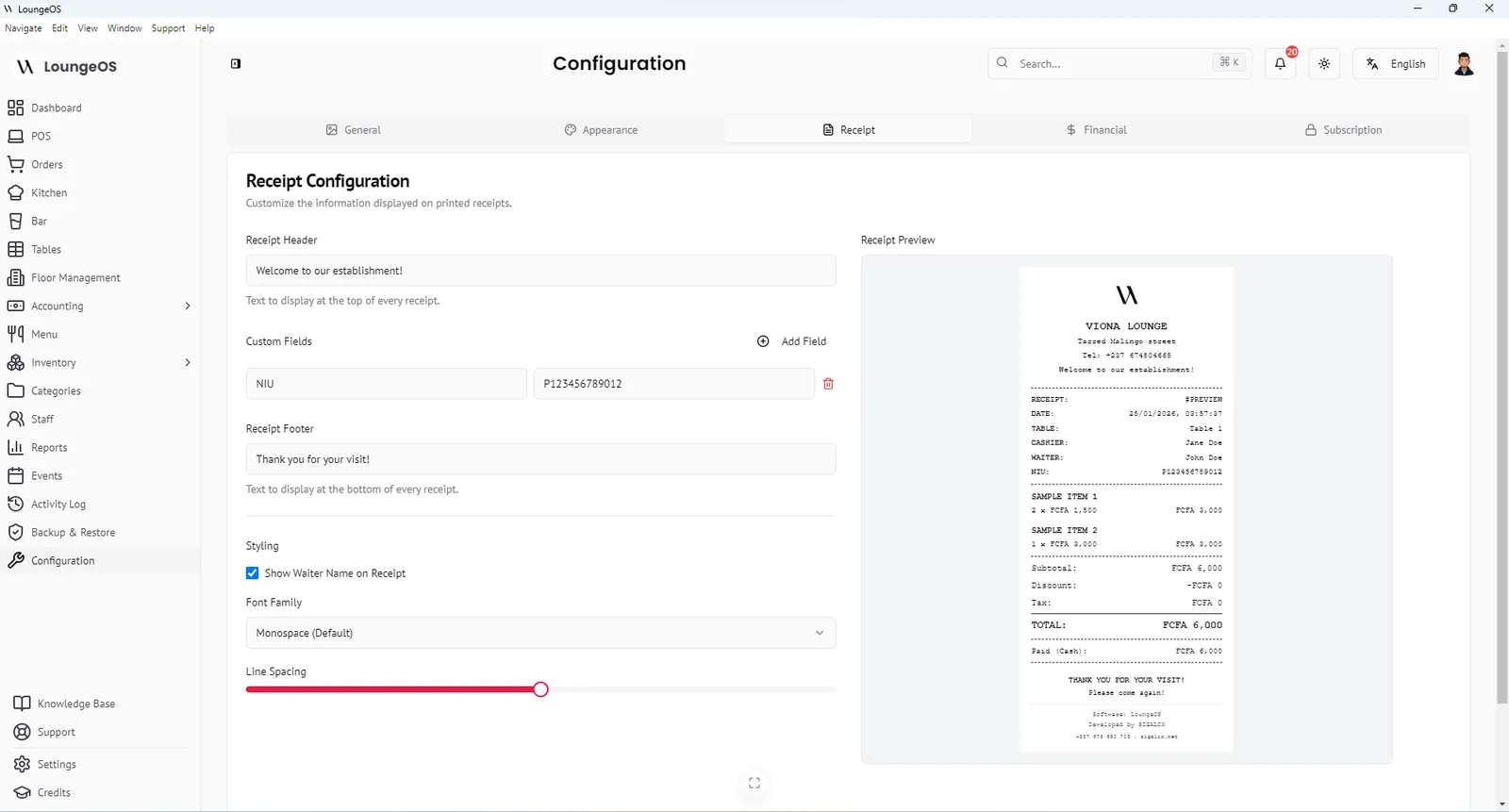
In LoungeOS you can put your logo, a header greeting and a thank-you message on receipts from the receipt configuration screen.
Power: the UPS is not optional
Where power cuts are common, a UPS (uninterruptible power supply) or inverter with battery on the host computer and router is the cheapest insurance you can buy.
How to size it, roughly:
- Add up the power draw: a laptop host (about 45–65 W) + router (about 10–15 W) ≈ 60–80 W. A desktop with monitor might be 150–250 W.
- Check the UPS runtime chart at that load. A small 600–1000 VA UPS often runs a low load like a laptop and router for well over 30 minutes, but runtime varies a lot by model and battery age.
- If your outages typically last hours, use an inverter with a deep-cycle battery or a solar backup instead of a small UPS.
Don’t plug the thermal printer, fridges or the coffee machine into the same UPS.
Three example setups
Snack bar or café (minimum): a Windows laptop as host and cashier, the owner’s phone for orders, a small Android tablet for the kitchen, an 80 mm USB printer, the existing router, and a small UPS for the router.
Restaurant, 15–25 tables: a Windows laptop or desktop with SSD on a UPS, a dual-band router (plus an access point if needed), 3–6 waiter phones, a 10” kitchen tablet on a bracket, a 10” bar tablet, and an 80 mm printer at the cashier.
Lounge or hotel with several areas: a dedicated host PC on an inverter, a mesh Wi-Fi system covering every area, phones for each waiter, kitchen and bar screens, a printer at each cashier point, and a separate guest Wi-Fi network.
Hardware checklist before opening night
- ☐ Host has a fixed IP and LoungeOS starts with Windows
- ☐ Firewall allows the POS port (2304 for LoungeOS)
- ☐ Every table and the kitchen have good Wi-Fi signal
- ☐ Host and router are on backup power, tested by unplugging
- ☐ Test receipt printed with your logo
- ☐ Spare paper rolls and charging cables in stock
- ☐ A backup of the database saved to USB
Run your next service on LoungeOS
Install LoungeOS on a Windows computer, connect your tablets and phones over Wi-Fi, and run real service for 30 days. Free, no credit card.
Frequently asked questions
Can I use my staff’s personal phones as POS terminals?
Yes, with a browser-based POS. Each person logs in with their own account and connects to the venue’s Wi-Fi. Make sure staff log out at the end of the shift.
What printer works with a restaurant POS?
An 80 mm thermal receipt printer with a Windows driver and USB or Ethernet connection is the most common choice. Test it with the POS on your host computer before buying several.
Do I need a cash drawer?
It’s optional but useful. Many cash drawers open automatically through the receipt printer. The important control is that every cash payment is recorded against a cashier and a bill.
How big a UPS do I need for a POS?
For a laptop host and a router (about 60–80 W total), a small 600–1000 VA UPS often gives a useful runtime, but check the manufacturer’s runtime chart. For outages lasting hours, use an inverter with a larger battery.