On this page
| Where | Best for | Without internet |
|---|---|---|
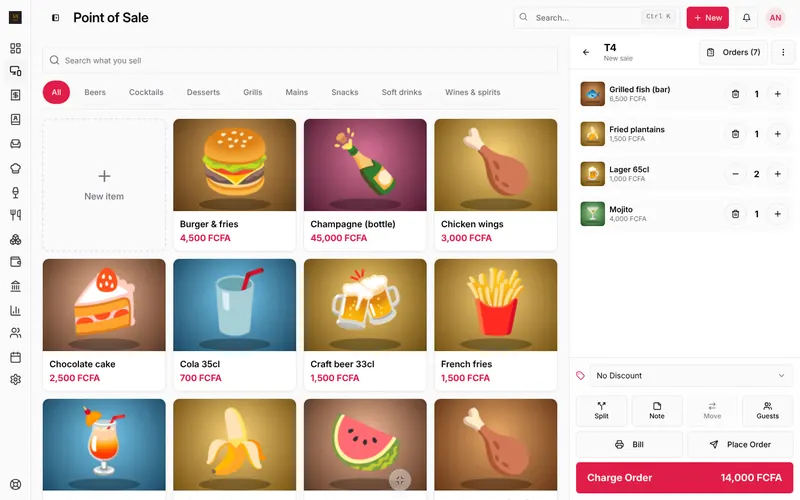
| Web app (app.loungeos.app) | Owners and managers anywhere, any computer or tablet | Needs internet |
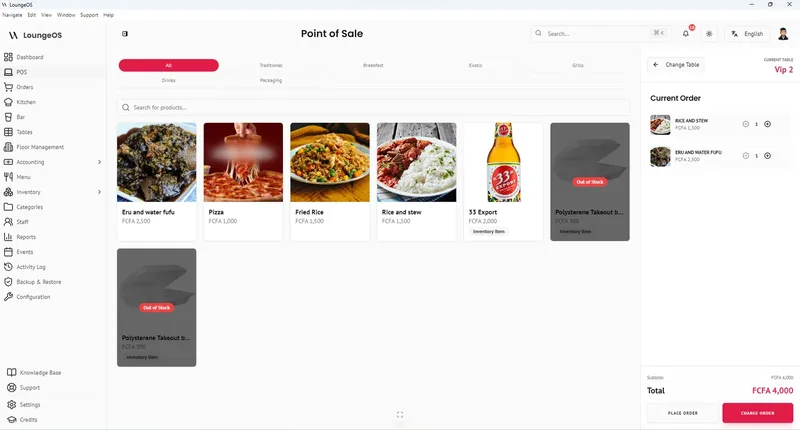
| Windows app (Windows 10 and 11, 64-bit) | The till at the counter | Keeps selling, syncs later |
| Mac app (Apple Silicon or Intel) | The till at the counter | Keeps selling, syncs later |
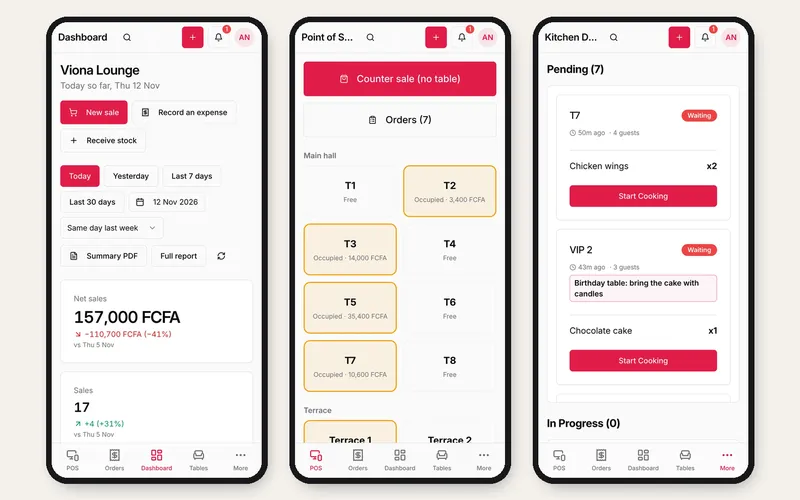
| Android phone app (Android 7 or later) | Waiters, chefs, owners on the move: notifications and a widget | Needs internet |
All of them use the same LoungeOS account and the same business data. Downloads are on the download page.
Install the Windows app
- On the download page, press Download for Windows to get LoungeOS-Setup.exe.
- Open the file and follow the installer. If Windows SmartScreen says it protected your PC, press More info, then Run anyway.
- LoungeOS opens when the installer finishes. Next time, open it from the desktop or the Start menu.
Install the Mac app
- Open the Apple menu, About This Mac. Chip: Apple M1 (or later) means Apple Silicon; Processor: Intel means Intel. Download the matching file.
- Open the .dmg and drag LoungeOS into Applications.
- The first time, macOS may say it cannot open the app. Open System Settings, Privacy & Security, and press Open Anyway.
Sign the till in to your account
The first time it opens, the till asks you to sign in with your LoungeOS account. There is no licence key.
- Press Sign in with my account. Your browser opens your account page.
- The till shows a short code. Check it matches the one in the browser and confirm it at account.loungeos.app/link. You can confirm from any phone or computer where you are signed in.
- The till says All set and opens LoungeOS.
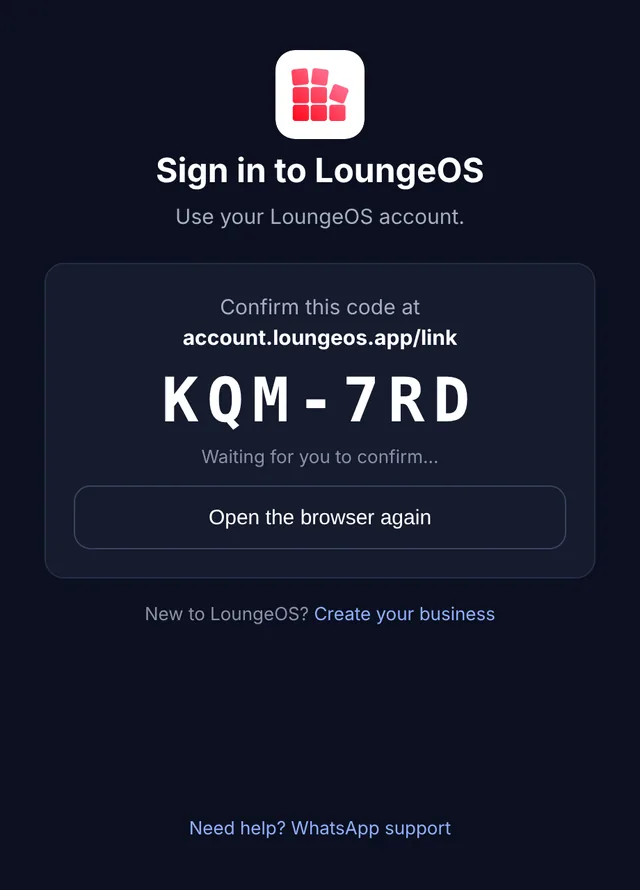
No browser on the till? Press I have a code from my account instead. In your account at account.loungeos.app, open Devices, create a sign-in code, and type its 6 characters on the till.
If the account has no plan or trial yet, the till says Choose a plan to start selling. Press Choose a plan, start the trial or pay, then I’ve paid, check now.
Set up this till
Next, the till asks who signs in on it.
- A new business (you have no business online yet): type the business name, your mobile number (country code first, then the number), your name, your email and a PIN of 4 to 6 digits. Press Start using LoungeOS.
- Your business is already online: the till picks it up, and you only choose your till PIN.
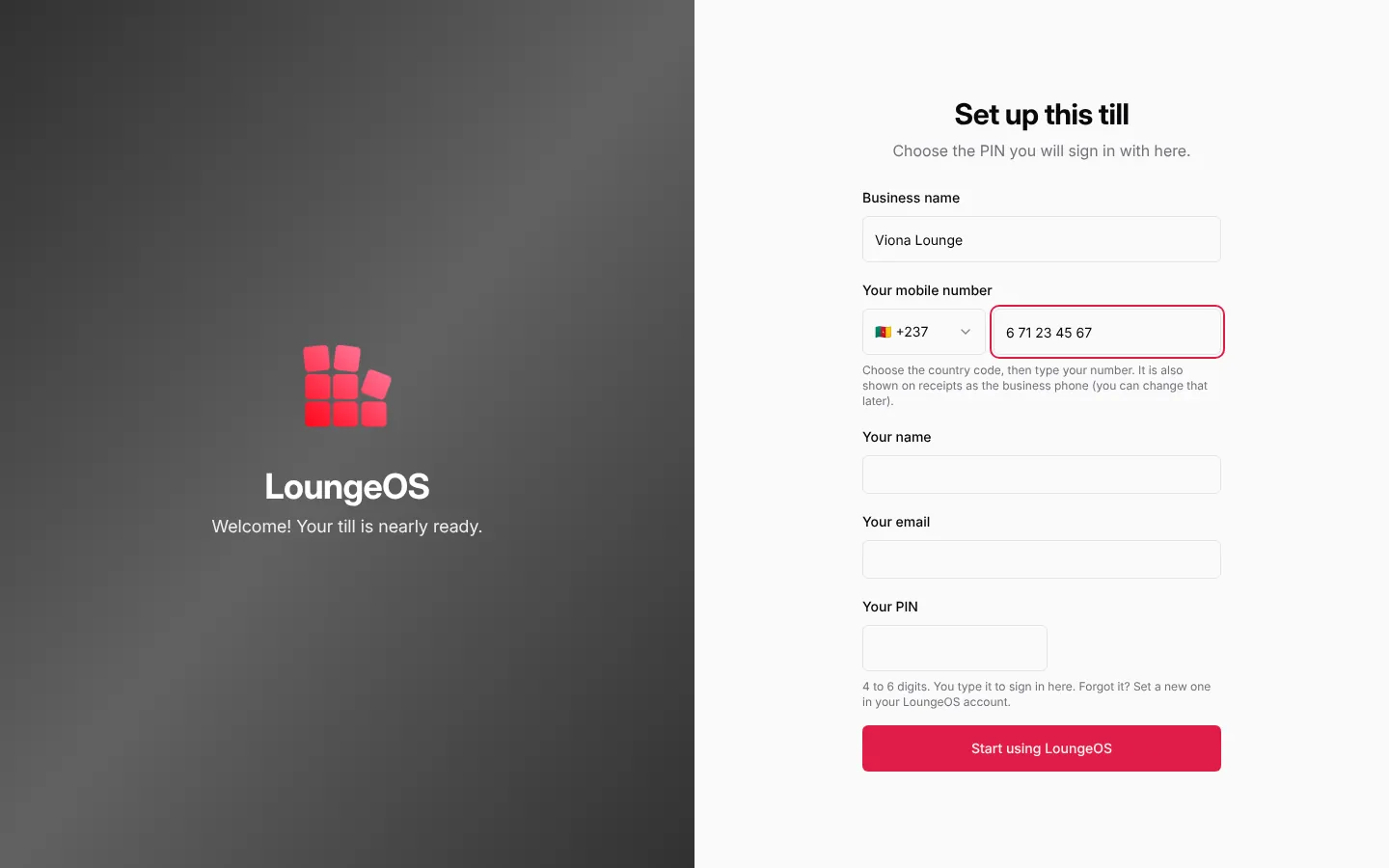
From then on, each person signs in on the till by tapping their name and typing their PIN. See Add your team.
If the till shows Connect this till, it found a business on the till and another one online. Choose Put this till’s business online to keep the till’s data, or Use (business) on this till to replace the till’s data with the online business. Only an owner or manager can do this.
Install the Android phone app
- On your phone, open the download page and press Download for Android to get LoungeOS-Android.apk.
- Open the file. When Android asks, allow installs from your browser or files app, then press Install.
- Open LoungeOS and sign in. Continue with Google opens your phone’s browser to finish, then brings you back to the app.
- Allow notifications when Android asks.
Had the old LoungeOS Android app? Uninstall it after installing the new one: they are different apps. More in The LoungeOS phone app.
Use the web app
Open app.loungeos.app in Chrome, Edge, Firefox or Safari and sign in. Nothing to install. It is always the latest version.
Updates
- Windows updates itself when the till is idle; you see What’s new after.
- On Mac, LoungeOS tells you when a new version is out and opens the download page.
- The web app and the phone app are always current.
Frequently asked questions
How many tills can I install?
As many as your plan’s device limit: 2 on Starter, 5 on Business, 10 on Pro. See Plans and billing.
Can phones and tablets use the till over Wi-Fi?
Yes. On the same Wi-Fi as the till, open the browser and go to the till computer’s address on port 2304, for example http://192.168.1.15:2304 (allow port 2304 in the computer’s firewall). That keeps working without internet. With internet, phones and tablets can also use the web app or the phone app. Steps on the download page.
Stuck on a step? Write to support@loungeos.app or WhatsApp +237 679 690 703 and say which page you are on.