On this page
Add a team member
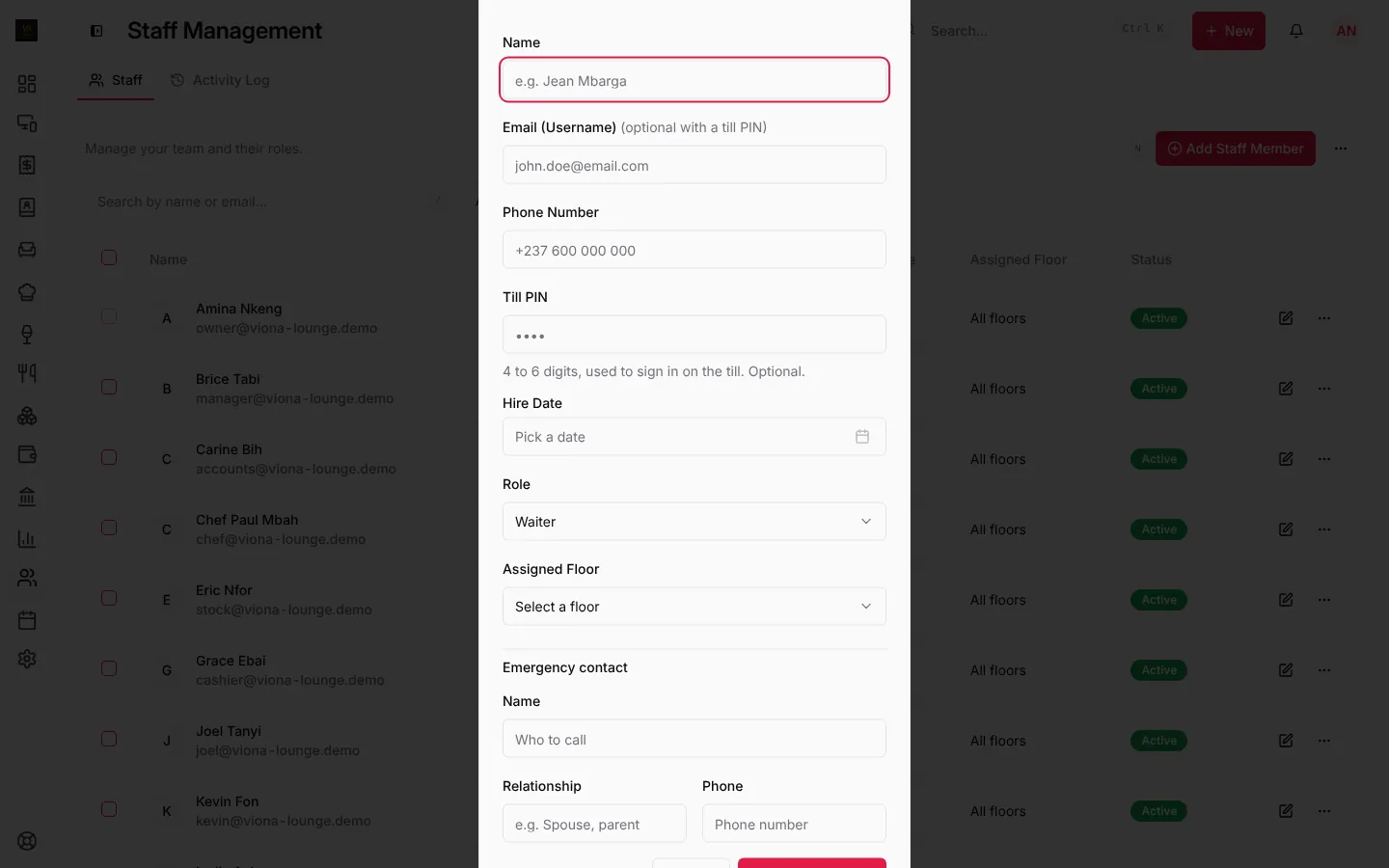
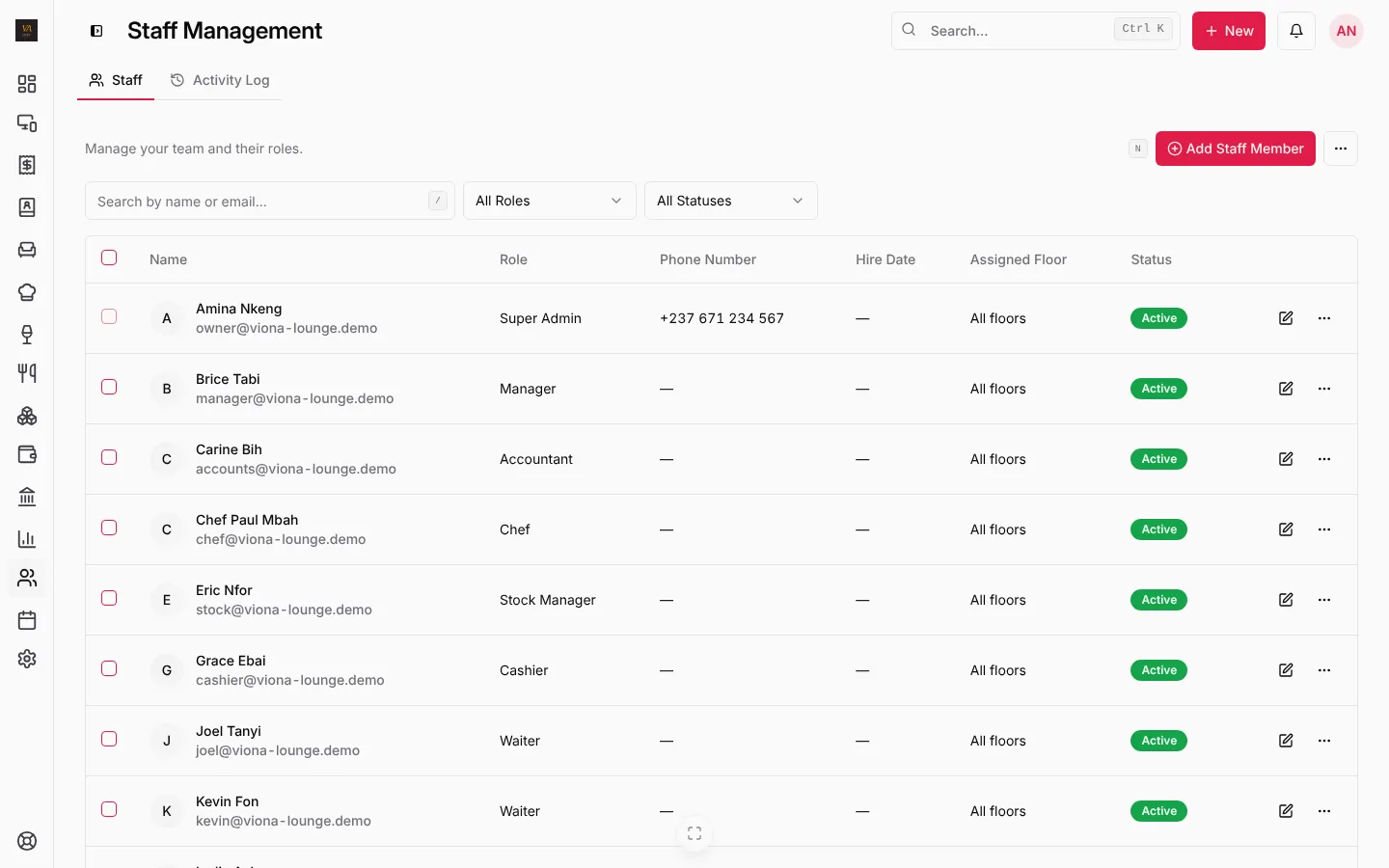
- Open Staff and press Add Staff Member. From any page you can also press + New, then Add staff.
- Type their Name.
- Email: they get an invitation and can then sign in to the web app and the phone app with their own account. The email is optional if they only use a till.
- Till PIN: 4 to 6 digits they type to sign in on the till. Optional, but it makes switching people on a shared till a two-second job.
- Pick their Role and, for waiters, their Assigned Floor.
- Save.
How many people you can add depends on your plan: 2 users on Starter, 5 on Business, unlimited on Pro. See Plans and billing.
Roles
| Role | What they do in LoungeOS |
|---|---|
| Super Admin (owner) | Everything, including billing, branches and backups |
| Manager | Daily running: staff, menu, stock, reports, approvals |
| Cashier | Takes payments, customer tab payments, sees the bar screen |
| Waiter | Takes orders at the tables of their floor |
| Bartender | The bar screen |
| Chef | The kitchen screen |
| Stock Manager | Stock items, suppliers, receiving stock (needs a plan with stock) |
| Accountant | Expenses, accounting, reports (needs a plan with expenses or accounting) |
The side menu, the + New button and search (Ctrl K or ⌘K) only show what each role can open.
Sign in on a shared till
On the till, each person taps their name and types their PIN. To hand over, sign out from the menu under your picture. A manager can reset anyone’s PIN in Staff. Each person can set their own PIN online in My settings.
Turn someone off
When someone leaves, open their row’s menu in Staff and choose Deactivate. They can no longer sign in anywhere, and their past sales stay in the reports under their name.
The activity log
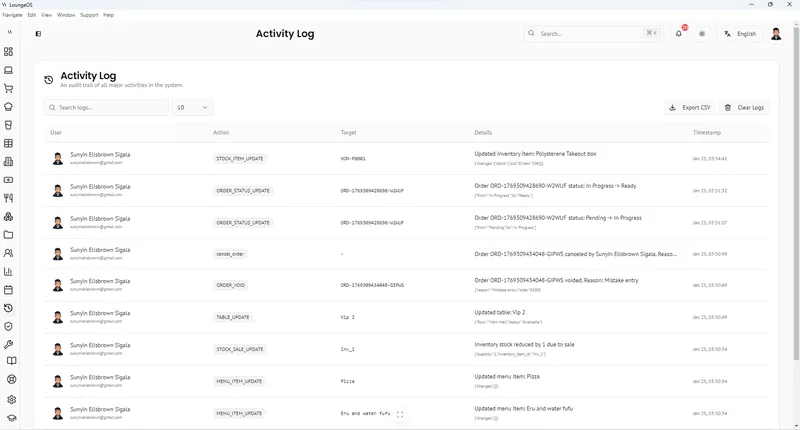
Open Staff, then the Activity Log tab. It lists sign-ins, cancelled and refunded orders, price changes, drawer openings without a sale, stock adjustments, settings changes and who approved what.
Frequently asked questions
A waiter forgot their PIN. What do I do?
Open Staff, edit the person and type a new Till PIN. It reaches the till at the next sync, within seconds when it is online.
Can I limit what a manager can do?
Managers can do everything except billing and owner-only actions. Give someone the Cashier role if they should take payments but not change prices or approve cancellations.
Stuck on a step? Write to support@loungeos.app or WhatsApp +237 679 690 703 and say which page you are on.