On this page
What protects your data
- The online copy. Every till syncs to your business online every few seconds when it has internet.
- Daily cloud backups of the online data, kept off the server.
- Backups you download yourself, whenever you want one in your hands.
Each business is fully separate from every other business: nobody else can see your data.
Download a backup
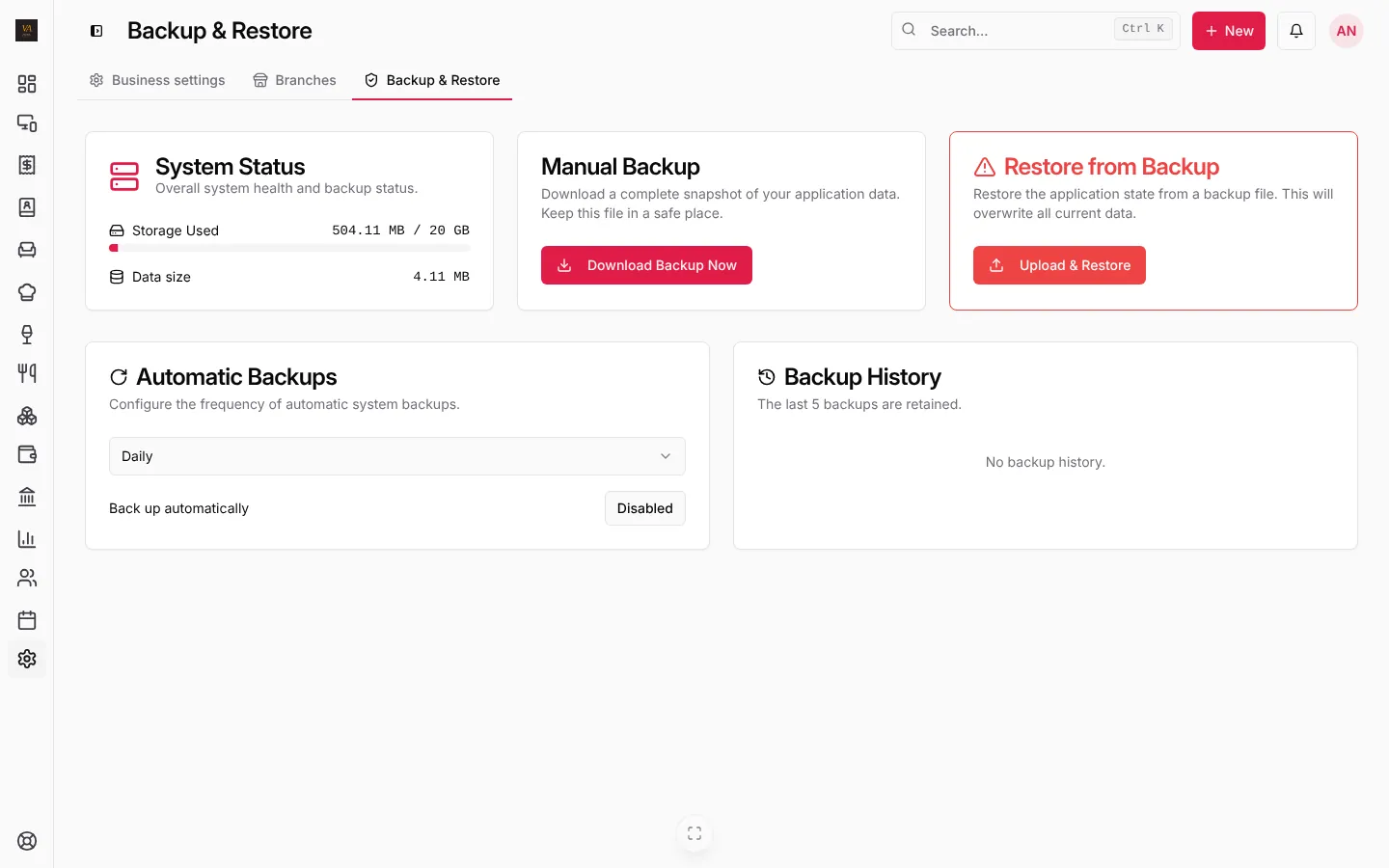
- Open Business settings, then the Backup & Restore tab (owner and managers only).
- Under Manual Backup, press Download Backup Now. Keep the file somewhere safe, such as a USB key or your email.
Automatic Backups makes the till save backups on its own (daily by default); Backup History keeps the last 5.
Restore a backup
Under Restore from Backup, press Upload & Restore and choose the file. Restoring overwrites the data on this till with the backup’s, so only do it when you mean to go back in time, and download a fresh backup first.
Replace a till computer
You don’t need a backup file when the till was syncing:
- Install LoungeOS on the new computer.
- Sign it in to your account. It finds your business online and brings everything down.
- Choose your till PIN. Done.
In your account at account.loungeos.app, Devices, sign out the old computer so it no longer counts against your device limit.
Uninstalling
When you uninstall the Windows app, it asks whether to keep the data on the computer. Your online copy is not affected either way.
Frequently asked questions
Is my data deleted if I stop paying?
No. LoungeOS becomes read-only and keeps everything. Pay again and you continue where you stopped.
Can I get all my data out?
Yes: the backup file, plus PDF, Excel and CSV exports of sales, orders, stock and accounts.
Stuck on a step? Write to support@loungeos.app or WhatsApp +237 679 690 703 and say which page you are on.