In this guide
A kitchen display system (KDS) is a screen in the kitchen, and often a second one at the bar, that shows orders as soon as waiters enter them in the POS. Cooks see what to make, in what order and with what notes, then mark each order as in progress and ready. It replaces the paper ticket printer, the handwritten order pad and the shouting across the pass.
How a KDS works, step by step
- The waiter enters the order on the POS, at the table on a phone or at a terminal.
- The POS routes each item to the right screen. Food goes to the kitchen, drinks to the bar, and in larger kitchens items may go to separate stations such as grill or cold.
- The ticket appears instantly with table number, items, quantities and notes (“no onions”, “well done”), usually with a sound.
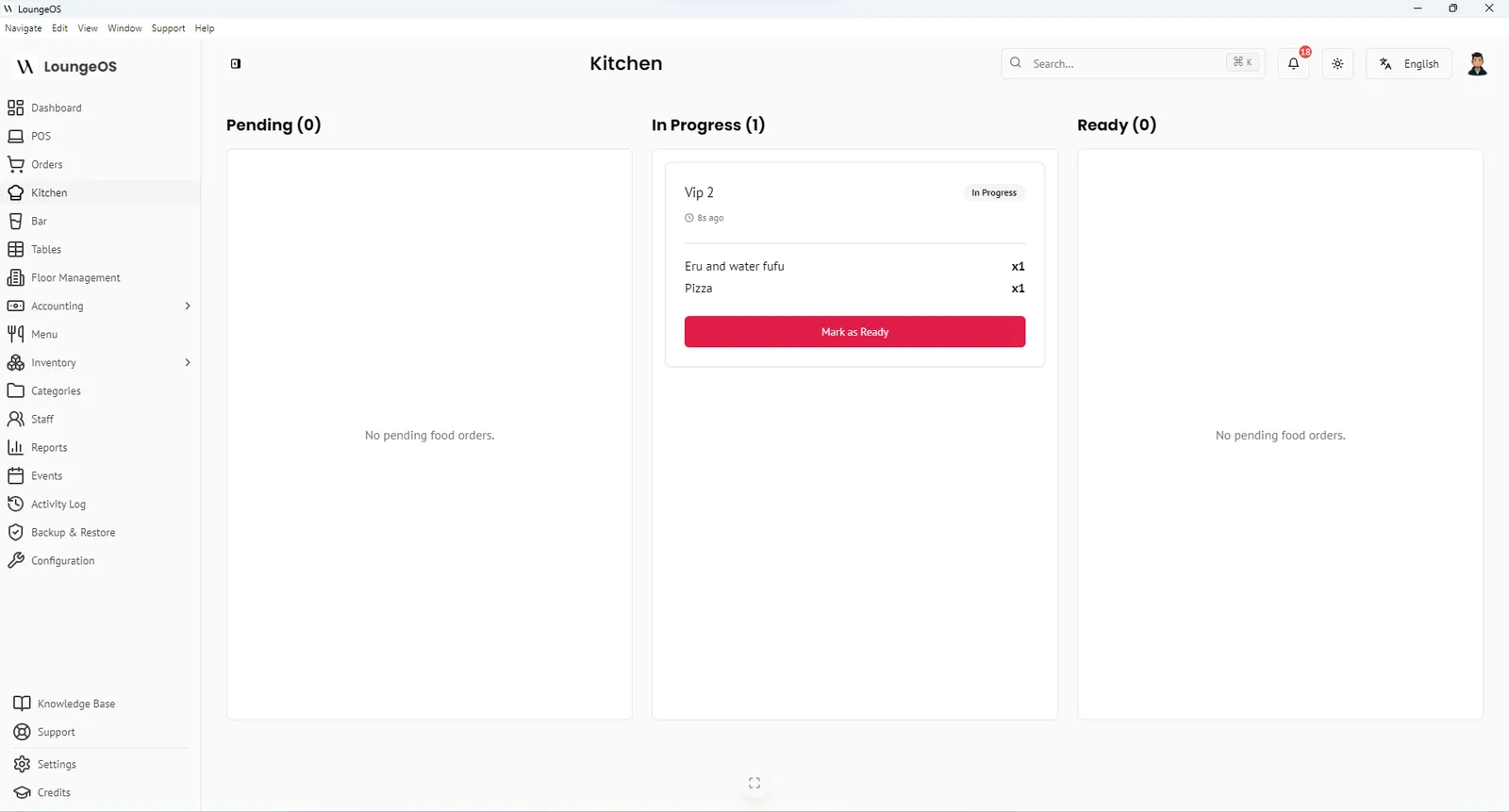
- The cook starts the ticket, moving it to In progress.
- The cook marks it ready. The waiter or runner is alerted to collect.
- The ticket stays visible until it’s served or paid, depending on the system.
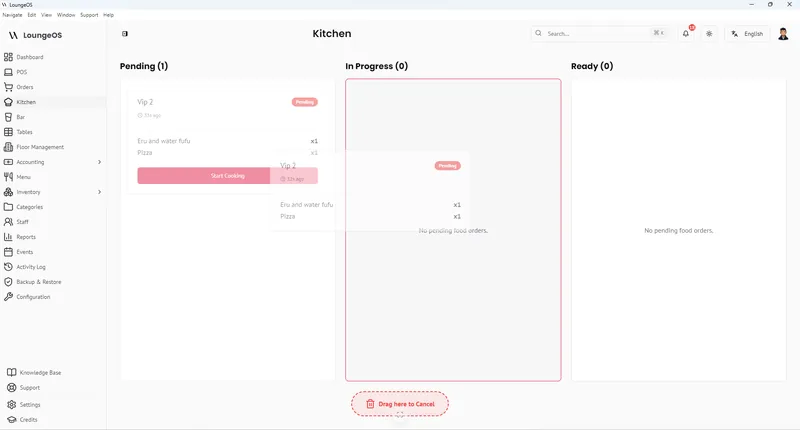
In LoungeOS, tickets move through Pending → In progress → Ready, oldest first, with audio alerts when a ticket arrives and when it’s ready. Routing is decided by the category: tick “This is a food category” for kitchen items, leave it unticked for drinks.
Benefits: why kitchens switch from paper
| Paper tickets | KDS |
|---|---|
| Handwriting misread | Orders appear exactly as entered |
| Tickets lost, stained or out of order | Can’t be lost, oldest first |
| Prep starts after printing and walking | Prep starts the second the order is placed |
| Waiters check the pass repeatedly | Ready alert tells them when to come |
| No record of cancellations | Each cancellation logged, ideally with a reason |
| Paper and ink costs | None |
Vendors often claim KDS adoption cuts wait times by 20–30%. Those figures aren’t usually backed by published studies, so judge by your own ticket times before and after. The mechanism is real, though: removing the print-and-walk step and the misread ticket saves minutes on every order in a busy service.
Routing: the feature that matters most
Without routing, every station sees everything, and the bartender has to scroll past grilled fish to find the beers. Good routing sends each item to the station that prepares it:
- Category-based routing (simplest): each menu category belongs to a station. LoungeOS uses this: food categories go to the kitchen display, drink categories to the bar display.
- Item-based routing: individual items go to specific stations, useful for large kitchens with grill, fryer and cold sections.
Common mistake: a drink category accidentally marked as food, so beers appear in the kitchen. If that happens in LoungeOS, open the category and untick “This is a food category”.
Cancellations from the kitchen
Sometimes the kitchen must cancel: a dish ran out, or a duplicate order was entered. A good KDS lets the cook cancel with a reason, and logs who did it. LoungeOS has a cancel drop zone at the bottom of the screen. Dragging a ticket there asks for a reason, and a manager can reactivate it within 24 hours if it was a mistake. This turns “the kitchen lost it” into a traceable event.
What hardware does a KDS need?
- Screen: an 8–10” Android tablet on a wall bracket is the most common choice. Old laptops or a monitor with a small PC also work.
- Placement: visible from the pass, away from steam, grease and fryer heat.
- Network: solid Wi-Fi signal in the kitchen. Test it. Kitchens with metal surfaces and walls often have dead zones.
- Optional: a bump bar (physical buttons) for very busy kitchens. Most small kitchens are fine with touch.
See our POS hardware guide for more detail.
How to roll out a KDS in one week
- Day 1: set up categories with correct routing, mount the screen, test Wi-Fi.
- Day 2: train cooks for 15 minutes: start, ready, cancel with reason.
- Days 3–4: run paper and KDS in parallel at lunch.
- Day 5: switch off paper for lunch service.
- Day 6–7: switch off paper completely. Review cancellations and ready times.
Does every restaurant need a KDS?
You’ll benefit most if you have:
- Separate kitchen and bar, or several stations
- More than about 30 orders in your peak hour
- Recurring wrong or forgotten orders
- Disputes about cancelled or “lost” orders
A small café where one person cooks and serves can live without one, but even then a tablet KDS is cheap insurance against lost tickets.
Run your next service on LoungeOS
Install LoungeOS on a Windows computer, connect your tablets and phones over Wi-Fi, and run real service for 30 days. Free, no credit card.
Frequently asked questions
What does KDS stand for?
KDS stands for kitchen display system: a screen that shows incoming orders to the kitchen instead of printed tickets. A bar display system (BDS) does the same for drinks.
Is a kitchen display system worth it for a small restaurant?
Often yes, because the hardware can be a low-cost tablet. The main benefits, no lost tickets, ready alerts and logged cancellations, apply at any size.
Does a KDS work without internet?
It depends on the POS. With an offline-first POS such as LoungeOS, the KDS connects to a computer in the restaurant over Wi-Fi and works without internet. Cloud KDS products may need a local hub or have limits during outages.
Can I still print tickets with a KDS?
Many systems support both. Most restaurants that adopt a KDS stop printing kitchen tickets and keep printing only customer receipts.