In this guide
In Cameroon, Côte d’Ivoire, Ghana and many other African markets, a growing share of restaurant and bar bills is paid with mobile money: MTN Mobile Money (MoMo), Orange Money and other wallets. Customers like it because they don’t need cash. Owners like it because it reduces cash on site. But it creates a new risk: payments that look real and aren’t.
This guide shows how to set up mobile money properly and run a checkout routine that makes fraud very hard.
Step 1: Open a merchant account for each operator
Don’t let customers pay to the manager’s or cashier’s personal number. Open a merchant account (sometimes called MoMo Pay, merchant code or Orange Money marchand) with each operator your customers use. Benefits:
- Business payments are separate from personal money
- You get a merchant code or number to display at the counter and on tables
- You can usually have several staff phones see incoming payments without giving them withdrawal rights
- You get statements that help reconciliation
Requirements and fees differ by operator and country, so ask your operator’s business desk for the current conditions. In Cameroon, MTN MoMo and Orange Money also offer USSD menus (*126# for MTN MoMo and #150# for Orange Money) that customers already know.
Step 2: Display how to pay
Put a small sign at the cashier and on each table with:
- The merchant name exactly as it appears in the customer’s confirmation
- The merchant code or number for each operator
- A line such as “Please show the confirmation to the cashier. Your table is closed when we receive the payment.”
This sets expectations and stops arguments later.
Step 3: Use a fraud-proof checkout routine
The most common scams at the counter:
- Fake confirmation SMS. The customer shows a message that looks like a payment confirmation but was typed or forwarded.
- Old confirmation. The customer shows a real message from a previous payment.
- Wrong recipient. The money was sent to another number, sometimes a staff member’s.
- Staff substitution. A customer pays cash, and the staff member records it as mobile money and keeps the cash.
The routine that stops all four:
- The cashier tells the customer the exact amount and the merchant code.
- The customer pays.
- The cashier confirms the payment on the business phone or merchant app, not on the customer’s phone. They check the amount, the time and the sender.
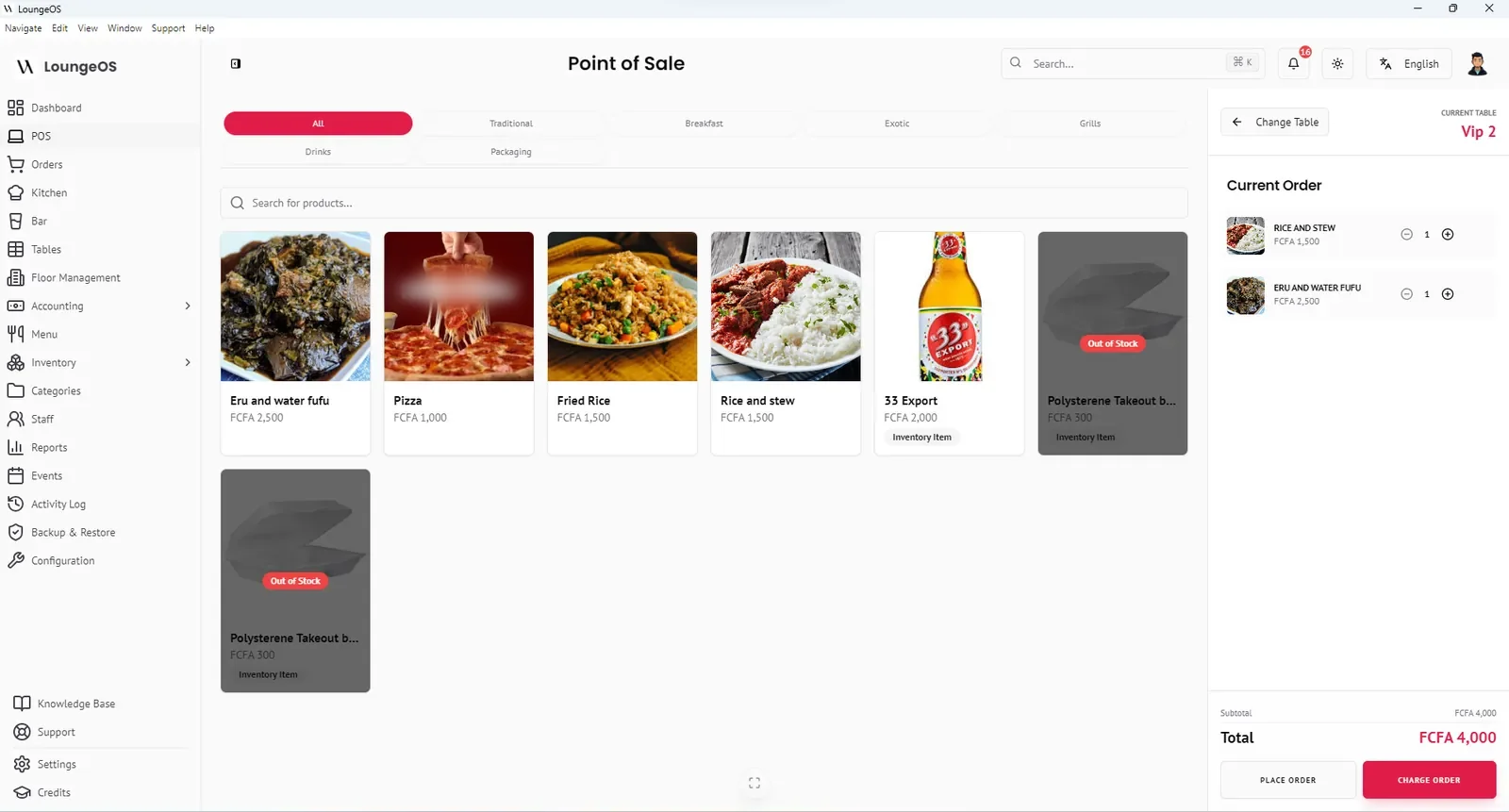
- The cashier records the payment in the POS as mobile money, selecting the operator and typing the transaction reference from the business-side confirmation.
- Only then is the table closed and the receipt printed.
In LoungeOS, step 4 means choosing MTN Mobile Money or Orange Money at checkout and entering the reference. If the group splits the bill, part can be cash and part mobile money on the same bill. See mobile money payments.
Step 4: Reconcile every day
At closing, the manager compares two lists:
| Source | What it shows |
|---|---|
| POS report | Every mobile money payment recorded, with cashier, table, time, amount and reference |
| Merchant wallet history | Every payment actually received |
Three outcomes are possible:
- Everything matches. Done.
- A POS payment has no matching wallet entry. Either the payment was fake, or it was recorded under the wrong operator. Check the reference and the cashier.
- A wallet payment has no matching POS entry. A sale wasn’t recorded, or a payment was recorded as cash. Investigate the cash drawer.
Because each POS entry carries a name and a time, discrepancies take minutes to trace instead of turning into arguments.
Step 5: Account for mobile money properly
Treat each wallet like a bank account:
- In your accounts, create a separate asset account per wallet, for example “MTN MoMo merchant” and “Orange Money merchant”.
- Record withdrawals or transfers to the bank as transfers between accounts, not as income.
- Record operator fees as an expense.
In LoungeOS’s accounting module you can add child accounts under assets for each wallet.
What about network outages?
Mobile money depends on the operator’s network. If the network is down, the customer may not be able to pay, or confirmations may be delayed. Your POS should never be the problem. An offline-first POS keeps orders and cash payments going. For mobile money during network problems, either wait for the confirmation before releasing the table or ask for another method. Don’t accept “I’ll send it later” from strangers.
Training script for cashiers
“Thank you! Your total is 12,500 francs. You can pay by MTN MoMo or Orange Money to the code on the card. Once the payment shows on our phone, I’ll print your receipt.”
Short, polite and firm. Customers who pay honestly appreciate the professionalism.
Run your next service on LoungeOS
Install LoungeOS on a Windows computer, connect your tablets and phones over Wi-Fi, and run real service for 30 days. Free, no credit card.
Frequently asked questions
Can my POS accept mobile money payments automatically?
Some systems integrate with operator APIs to request payments automatically. Others, including LoungeOS today, record the payment and its reference after the customer pays to your merchant code. Either way, confirm the payment on the business side.
How do I spot a fake mobile money SMS?
Don’t try to judge the customer’s screen. Check the payment on your own merchant phone or app. If it isn’t there, it hasn’t arrived.
Should staff use their personal numbers to receive payments?
No. Use merchant accounts in the business name. Personal numbers mix business and private money and make theft easy.
How often should I reconcile mobile money?
Every day, at closing. Small gaps found the same day are easy to explain. Gaps found at the end of the month rarely are.